
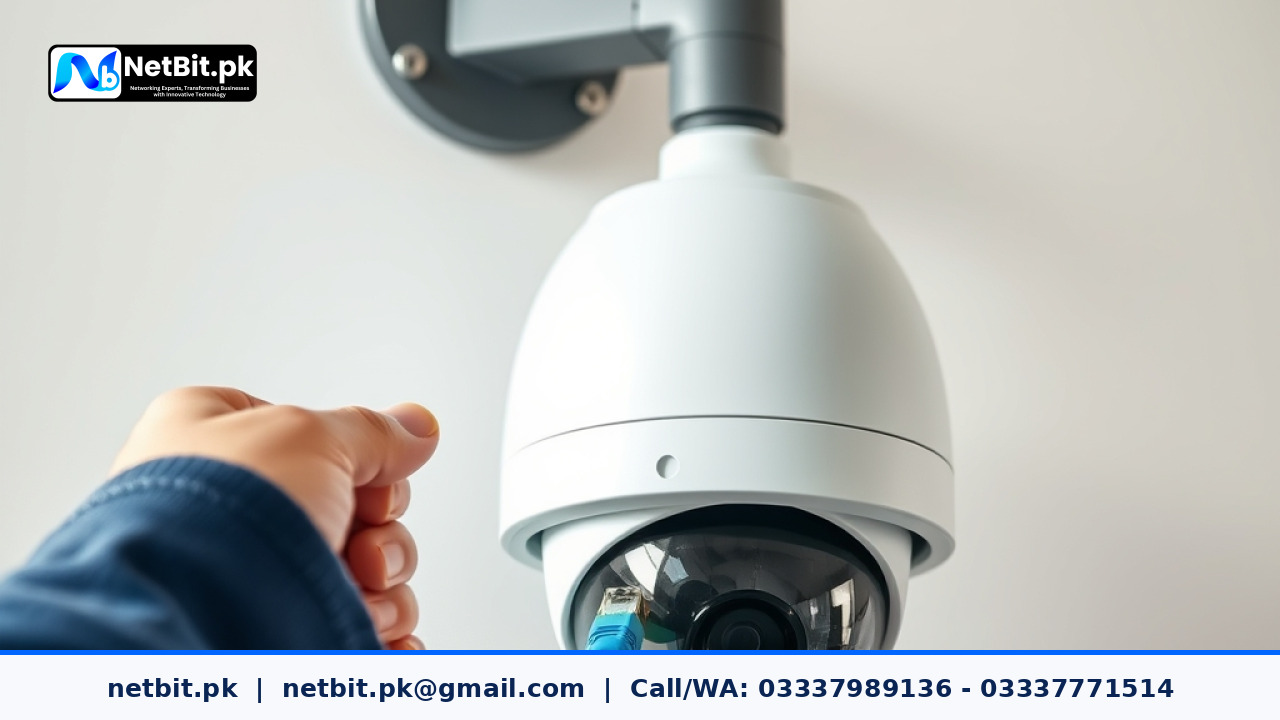
Understanding ONVIF Protocol Updates in CCTV Security
Modern surveillance technology has shifted rapidly from traditional closed analog setups to networked IP security ecosystems. However, one of the most persistent operational hurdles faced by commercial enterprises, educational institutions, and facility managers across Pakistan is hardware lock-in. When upgrading security systems, organizations often discover that cameras from different manufacturers cannot communicate reliably with their existing Network Video Recorder (NVR) or Video Management Software (VMS).
This is where the Open Network Video Interface Forum (ONVIF) standard becomes critical. Standardizing ONVIF protocols across your surveillance hardware eliminates proprietary barriers. It allows IP cameras, NVRs, and control software from disparate vendors to communicate over standard Ethernet networks using unified commands. Integrating modern ONVIF updates ensures long-term system scalability, reduces replacement costs, and simplifies maintenance routines for IT personnel.
Why ONVIF Standardization Matters Today
Historically, mixing equipment from brand A and brand B meant relying on vendor-specific drivers or fallback protocols like basic RTSP (Real-Time Streaming Protocol). Raw RTSP streaming provides video feeds but strips away essential functionality, such as Pan-Tilt-Zoom (PTZ) commands, motion detection alerts, dynamic resolution switching, and audio channels. Standardizing on native ONVIF profiles restores full control across multi-brand setups, ensuring that hardware updates do not compromise feature functionality.
Core ONVIF Profiles Every Pakistani Business Should Know
ONVIF releases protocol standards categorized into functional profiles. Understanding these profiles allows network administrators and operational leads to select compatible equipment without buying into a single manufacturer's product catalog.
Profile S: Basic IP Video Streaming
Profile S is the primary baseline standard for IP-based video systems. It governs the transmission of live video, audio streams, dynamic PTZ control, and relay outputs. If a camera and an NVR both support Profile S, you can reliably stream continuous live footage and control camera movement over standard Cat6 network cabling regardless of brand differences.
Profile G: Edge Storage and Playback Handling
Profile G focuses on edge storage management and local retrieval. In environments where network connections experience temporary interruptions, cameras equipped with onboard micro-SD cards continue recording locally. Once connection to the main NVR is restored, Profile G allows the NVR to request, pull, and sync missing video clips directly from the camera's local storage without operator intervention.
Profile T: Advanced Video Streaming and Analytics
Profile T covers modern video compression formats such as H.265 (HEVC), which dramatically reduces video bandwidth and NVR storage requirements compared to older H.264 codecs. Additionally, Profile T standardizes telemetry for intelligent video analytics, including motion detection events, tampering alarms, and line-crossing triggers sent from the camera to the recording host.
Technical Requirements for Upgrading to ONVIF-Compliant Systems
Transitioning an enterprise network to standardized ONVIF communication requires careful planning around physical cabling, active switching hardware, and authentication configurations.
1. Network Infrastructure & Bandwidth Planning
Deploying multi-vendor IP cameras over an ONVIF infrastructure demands stable network links. Every IP camera streaming high-definition video consumes sustained network throughput. Ensure your distribution switches use quality Cat6 copper cabling and support managed Power over Ethernet (PoE) to avoid voltage drops and high packet drop rates across longer cable runs.
2. Firmware Alignment and Feature Parity
Camera and recorder manufacturers regularly release firmware updates containing ONVIF stack patches. Mismatches in firmware versions can result in intermittent connection loss or disabled PTZ functions. Always verify that hardware devices are updated to the latest stable firmware builds that explicitly support Profile S or Profile T specifications.
3. User Authentication and Network Security
By default, many IP cameras disable ONVIF access or require explicit user account creation dedicated strictly to ONVIF API calls. Creating standard administrative credentials inside the camera interface is essential for enabling the NVR to authenticate and discover the device automatically during setup scans.
Step-by-Step Guide to Enable ONVIF Protocol Across Multi-Vendor Cameras
Follow this practical configuration workflow when connecting multi-vendor IP cameras to a central NVR using standardized ONVIF settings:
- Isolate and Assign Static IP Addresses: Log into your camera via its web management interface. Assign a permanent static IP address within your local network range (for example,
192.168.1.50) to prevent address changes after power cycles. - Enable ONVIF Protocol: Navigate to the network or integration security settings menu. Ensure the ONVIF switch is toggled ON. Some manufacturers disable this feature out of the box for security reasons.
- Add an ONVIF User Account: Create a dedicated ONVIF user account inside the camera web portal. Set the access level to Administrator or Operator, and configure a strong password. Note that on many modern devices, this credential is separate from the primary web administrator login.
- Verify Communication Ports: Note the ONVIF port number assigned by the camera software (typically port
80,8000, or8899). Confirm that local network firewalls or managed switches do not block traffic on these specific internal ports. - Discover and Add Device on NVR: Open your NVR manual device configuration panel. Select ONVIF as the protocol type instead of Auto or Private protocol. Input the camera's IP address, the designated ONVIF port, and the newly created ONVIF user credentials. Save and test the feed connection.
Common ONVIF Troubleshooting Scenarios in Local Deployments
Even with standardized protocols, real-world deployment challenges can emerge during security infrastructure upgrades:
- Time Synchronization Errors (NTP Mismatch): If the camera and NVR time drift apart by more than a few seconds, ONVIF security tokens may fail authentication. Always configure all devices to sync with a local Network Time Protocol (NTP) server or your central NVR clock.
- Missing Motion Detection Events: If basic video streams work but motion triggers fail, verify whether the camera relies on Profile T for analytics data. If the receiver only supports Profile S, set motion detection to process locally on the NVR software layer rather than on the camera end.
- Network Switch Port Saturation: High-bitrate streams from multiple ONVIF cameras routed through unmanaged desktop switches can lead to buffer overflows and video freezing. Upgrade access layers to gigabit managed switches to isolate surveillance traffic onto a dedicated VLAN.
Frequently Asked Questions
Can older analog CCTV cameras be upgraded to support ONVIF?
Legacy coaxial analog cameras cannot directly speak network protocols. However, you can convert them by routing analog BNC feeds into multi-channel IP video encoders or hybrid XVR units that convert analog signals into ONVIF-compliant IP video streams for your network.
Does using ONVIF reduce video quality or resolution?
No. ONVIF governs communication protocols, control signals, and handshake negotiation—it does not degrade raw video quality. The stream resolution, frame rate, and compression codec (H.264 or H.265) remain fully preserved as long as both devices support matching resolution profiles.
Is ONVIF secure for business networks in Pakistan?
Yes, provided best security practices are followed. Always change default factory passwords, update device firmware consistently, keep surveillance traffic segmented on a dedicated VLAN, and disable unused network services on the camera web interface.
Upgrade Your Security Infrastructure with NetBit Tech Expertise
Building a robust, scalable security and network infrastructure requires technical precision, structured cabling, and proper hardware selection. Whether you are upgrading an existing multi-vendor surveillance network or setting up a modern facility from scratch, standardizing your systems prevents costly technical headaches down the line.
At NetBit Tech, located in Khuzdar, Pakistan, our team of experienced engineers specializes in complete IT infrastructure solutions. We assist businesses, educational institutes, and facilities across the country with professional CCTV network design, Cat6 structured cabling, gigabit switch configurations, long-range wireless links (LiteBeam and PowerBeam setups), custom desktop systems, and tailored enterprise software development.
Do not let equipment incompatibilities compromise your security. Contact NetBit Software House & Technology today to evaluate your current setup, resolve network bottlenecks, and deploy structured, standardized IT and security systems built for long-term reliability.



Reader comments.
Share your question, suggestion or experience related to this article.
No comments yet
There are no approved comments on this article yet. You can be the first person to leave one.