
The Need for Computer System Storage Updates in Pakistani Workspaces
As business applications become more complex and data-intensive, traditional desktop computer systems in Pakistani offices frequently face severe performance bottlenecks. For years, many organizations relied on mechanical hard disk drives (HDDs) or early SATA-based solid-state drives (SSDs). Today, hardware standards have evolved significantly. Updating your computer system's storage sub-system to Non-Volatile Memory Express (NVMe) technology is one of the most cost-effective methods to revive office workstations, shorten boot times, and accelerate daily workflow tasks.
In standard business operations, slow loading times translate directly to lost productivity. Whether your team is compiling software, managing large accounting databases, or opening heavy vector graphics, storage throughput dictates how quickly processor cores receive data. At netbit tech, we regularly assist local organizations and commercial enterprises across Khuzdar and wider Pakistan in assessing their hardware performance and modernizing legacy computer systems.
Understanding Storage Architecture: SATA SSDs vs. PCIe NVMe Drives
To make informed system update decisions, it is vital to understand how modern storage architecture functions inside a desktop or workstation chassis. Mechanical hard drives rely on spinning platters and moving heads, yielding read speeds topped around 150 MB/s. SATA SSDs improved this by leveraging flash memory, but they remain capped at roughly 550 MB/s due to legacy SATA interface limitations designed initially for mechanical disks.
Key Differences in Read/Write Throughput
NVMe drives bypass traditional SATA controllers entirely, communicating directly with the computer system's processor over high-speed Peripheral Component Interconnect Express (PCIe) lanes. This structural update dramatically raises data transfer ceilings:
- SATA SSDs: Peak theoretical speeds around 550 MB/s to 600 MB/s using legacy AHCI driver stacks.
- PCIe Gen 3 NVMe: Transfer speeds ranging from 2,000 MB/s to 3,500 MB/s.
- PCIe Gen 4 NVMe: Advanced throughput scaling between 5,000 MB/s and 7,500 MB/s.
By upgrading system storage to NVMe, software applications load almost instantaneously, system updates execute faster, and background file indexing operates smoothly without freezing the user interface.
Thermal Management and Motherboard Compatibility
Unlike SATA drives connected via trailing ribbon cables, NVMe SSDs mount directly onto the motherboard using standard M.2 slots (typically standard 2280 form factor). Because NVMe controllers operate at substantially higher clock speeds, they produce concentrated heat under heavy write cycles. When updating desktop systems, administrators must verify that chosen drives include adequate thermal dissipation pads or motherboard heatsinks to prevent thermal throttling during peak operations.
Step-by-Step Guide to Updating System Storage Without Data Loss
Upgrading storage across an entire office fleet requires a systematic approach to prevent system downtime, operating system corruption, or critical data loss. Below is a structured update routine recommended by technical specialists at netbit software house.
Step 1: Evaluating System Specs and Motherboard Support
Before purchasing hardware, inspect your existing desktop systems. Verify whether motherboard chipsets feature physical M.2 slots and determine if they support PCIe NVMe modes or strictly SATA modes. Older systems built prior to 6th-generation Intel or 1st-generation AMD processors may require BIOS updates or adapter cards to boot reliably from NVMe storage drives.
Step 2: Choosing Between System Migration and Clean OS Installation
System updates can be performed via disk cloning or fresh operating system deployment:
- Disk Cloning: Utilizes specialized utility software to copy exact partition tables, boot sector records, and user files from the old disk to the new NVMe drive. This preserves user configurations and installed applications without requiring manual re-installation.
- Clean Installation: Involves installing a fresh copy of the operating system directly onto the NVMe drive. This method removes clutter, temporary system junk, and legacy driver conflicts, delivering optimal baseline stability for long-term use.
Step 3: Hardware Installation and BIOS Configuration
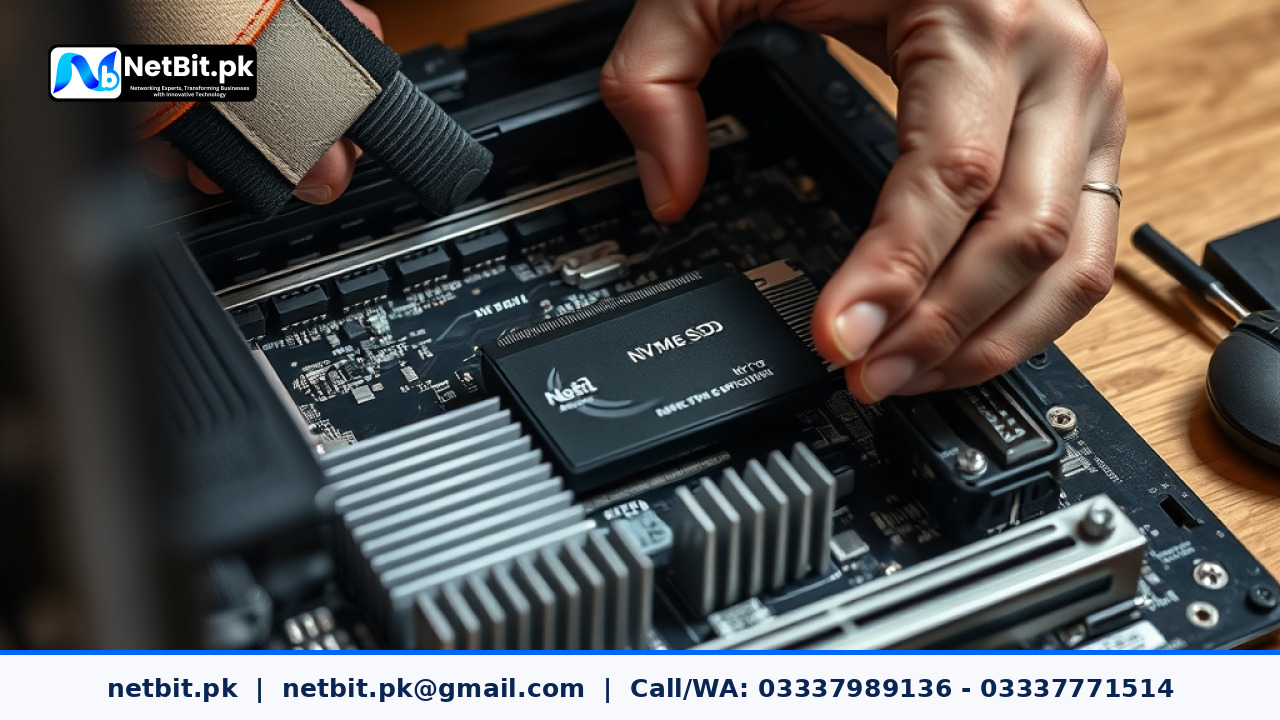
After switching off power and grounding electrical charges, insert the NVMe module into the M.2 slot at a 30-degree angle, press down gently, and secure it with the mounting screw. Once powered back on, enter the Unified Extensible Firmware Interface (UEFI) or BIOS settings to adjust boot priority orders. Ensure that storage controller mode is properly configured to NVMe or AHCI depending on system specifications, and enable UEFI native booting for fast startup performance.
Common Challenges and Troubleshooting in Pakistani Office Environments
Implementing hardware updates across offices in regions like Khuzdar presents unique environmental and electrical considerations. Unstable power supply can disrupt drive cloning procedures or damage flash memory cells if unexpected shut-offs occur during firmware write cycles. Always ensure workstations are protected by reliable Uninterruptible Power Supply (UPS) units during system maintenance operations.
Additionally, improper driver configuration often causes fresh NVMe installations to fail to detect during setup routines. If Windows installers do not display your new drive, download the specific storage controller drivers provided by your motherboard vendor onto your installation media prior to beginning setup.
Frequently Asked Questions (FAQs)
Can I install an NVMe SSD in an older desktop computer system?
Yes, provided the motherboard possesses an available PCIe slot and supports UEFI boot configurations. If a dedicated M.2 connector is missing, you can use a cheap PCIe-to-M.2 adapter card, though older motherboards may require custom BIOS updates to enable full boot functionality.
Will updating to NVMe SSD improve software execution speeds?
Yes. Applications open substantially faster because disk read bottlenecks are removed. While processing tasks like video rendering or heavy calculations still rely on CPU and RAM performance, initial loading, asset retrieval, and file saving operations see massive real-world performance gains.
How long do modern NVMe solid-state drives typically last?
Modern commercial NVMe drives come rated with high Terabytes Written (TBW) endurance metrics. Under standard business workloads, quality NVMe drives operate reliably for 5 to 7 years or longer before flash cell degradation becomes a concern.
Modernize Your IT Infrastructure with NetBit Tech
Upgrading desktop hardware, managing multi-system deployments, and maintaining reliable office infrastructure requires specialized technical planning. At NetBit, located in Khuzdar, Pakistan, our hands-on hardware and networking engineers help commercial businesses, educational institutions, and public offices optimize their computing environment for performance and dependability.
From complete desktop system overhauls and software deployments to structured Cat6 networking and centralized CCTV surveillance installations, netbit khuzdar delivers end-to-end technical solutions tailored to local enterprise needs. Contact our team today to evaluate your business hardware, streamline system operations, and upgrade your company's computer infrastructure for maximum productivity.



Reader comments.
Share your question, suggestion or experience related to this article.
No comments yet
There are no approved comments on this article yet. You can be the first person to leave one.