
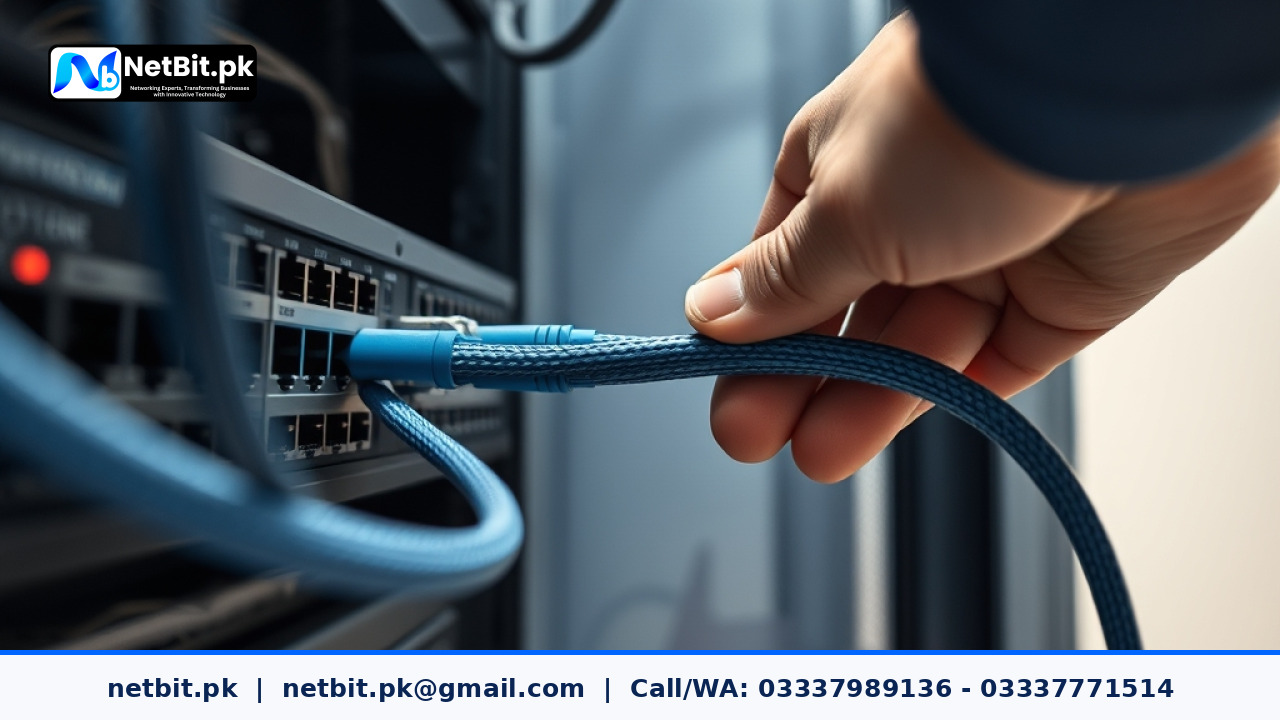
Understanding Static IP Addresses in Business Networks
In a professional office environment, stability is the foundation of productivity. Many local businesses in Khuzdar rely on internal servers for file storage, database management, and hosting custom web applications. A common challenge faced by IT administrators is connection drops caused by dynamic IP assignment. When a server's IP address changes unexpectedly, local workstations lose their connection to shared folders or internal software services. This is where assigning a static IP address becomes necessary.
Why Your Business Server Needs a Static IP
A static IP address is a permanent address assigned to a device on a network. Unlike dynamic IPs, which are assigned by a DHCP server and can change after a system reboot or lease expiration, a static IP remains constant. This consistency is vital for several reasons:
- Reliable Resource Access: Network printers and file servers require a fixed address so that all computers on the network know exactly where to find them.
- Simplified Troubleshooting: When an issue arises, knowing the exact IP address of your server allows the NetBit tech team to pinpoint network bottlenecks quickly.
- Custom Software Integration: Many custom web applications and desktop systems built by NetBit Software House rely on hardcoded server paths for database connectivity.
Step-by-Step Configuration Guide
Configuring a static IP should be handled with care to avoid IP address conflicts. Follow these general steps:
- Identify Your Network Range: Ensure you know your network's subnet mask, default gateway, and DNS server addresses.
- Reserve the IP in the Router: Before setting the IP on the server itself, it is best practice to reserve that specific address in your network switch or router settings to prevent other devices from taking it.
- Manual Configuration: Navigate to your server's network adapter settings in the Control Panel. Select TCP/IPv4 and choose 'Use the following IP address' to enter your designated details.
- Test Connectivity: Once set, ping the server from a separate workstation to ensure the network identifies the new configuration correctly.
Best Practices for Network Maintenance
Always document your network topography. Keep a simple spreadsheet listing every device, its MAC address, and its assigned static IP. If your office infrastructure is expanding, consider consulting with professionals to ensure your cabling—such as Cat6 or fiber patch cords—is properly organized to support high-traffic server communications.
Professional Server Solutions with NetBit
Managing server infrastructure requires precision and long-term planning. If you are experiencing frequent connectivity issues, slow database performance, or need help setting up a robust office network, NetBit Software House is here to assist. From professional IT maintenance and networking setup to custom software and web application deployment, our team provides the technical expertise your business needs to thrive. Contact NetBit today to discuss how we can streamline your IT operations and secure your business data.



Reader comments.
Share your question, suggestion or experience related to this article.
No comments yet
There are no approved comments on this article yet. You can be the first person to leave one.