
Introduction to Touch Screen Calibration in Industrial Environments
Industrial control terminals rely heavily on precise input accuracy. When operators interact with specialized machinery, kiosks, or production line interfaces, even a slight calibration offset can lead to operational errors, missed commands, or system frustration. Over time, physical wear, temperature fluctuations, and routine usage can cause touch displays to drift. Performing regular calibration ensures that the screen registers touch coordinates accurately.
At NetBit, our team often encounters specialized hardware setups where accurate input mapping is critical for daily operations. Whether you are running a custom automation panel in a facility in Khuzdar or managing specialized terminals across multiple offices, knowing how to reset and calibrate your touch displays is an essential maintenance skill.
Why Touch Coordinate Drift Happens
Touch screens use resistive, capacitive, or infrared grids to detect where a user touches the surface. Environmental factors such as dust accumulation, electrical noise, or minor display shifting can alter the reference points. If an operator taps a button on the left side of the screen and the system registers an input a few millimeters to the right, productivity drops. Regular calibration realigns the physical glass touch layer with the underlying graphical user interface.
Step-by-Step Guide to Calibrating an Industrial Touch Display
Follow these practical steps to safely clean, reset, and calibrate your touch screen control terminals without risking hardware damage.
- Power Down and Clean the Screen Surface: Turn off the terminal if required by the manufacturer instructions, or lock the input interface. Use a soft, lint-free microfiber cloth with a small amount of isopropyl alcohol to gently wipe away dust, grease, and finger oils. Debris near the edges of the bezel can trick capacitive sensors into registering false touches.
- Access the Calibration Utility: Open your operating system or proprietary control software settings. Navigate to the hardware, display, or touch settings menu. If you are using a specialized embedded Linux or Windows IoT environment, select the pen and touch settings or run the manufacturer-supplied calibration tool.
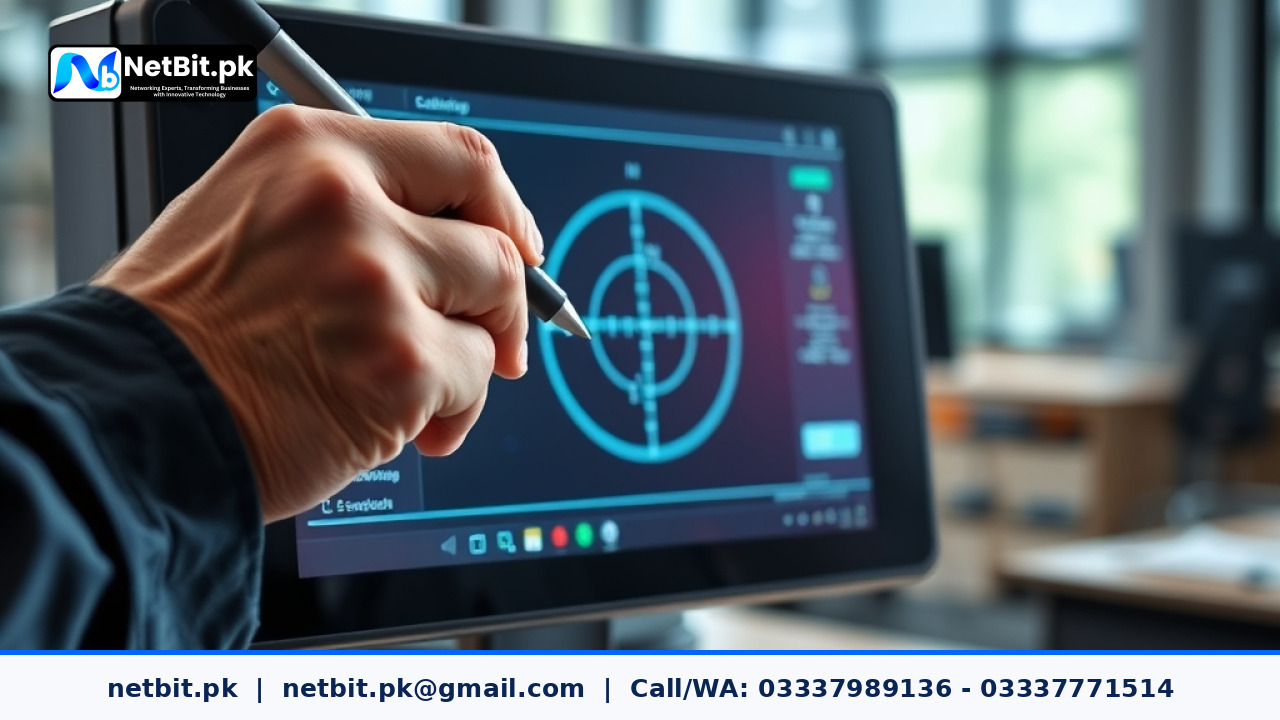
- Initiate the Calibration Sequence: Launch the calibration utility. The display will typically show a series of target markers, such as crosshairs or flashing dots, appearing sequentially in the corners and the center of the screen.
- Tap the Targets Accurately: Use a stylus designed for the specific touch technology or a clean fingertip to press firmly and hold on each target marker as it appears. Do not rush this step. Hold your touch steady until the system registers the point and moves to the next marker.
- Save and Test the New Configuration: Once all points are mapped, the utility will ask if you want to save the new settings. Save the configuration and perform a test run by opening a simple menu or drawing application. Tap various buttons near the corners and center to verify that the pointer matches your finger position precisely.
Best Practices for Maintaining Display Accuracy
To reduce how often you need to recalibrate your touch displays, follow these simple maintenance habits:
- Keep harsh chemical cleaners away from the display surface, as they can degrade specialized anti-glare or protective coatings.
- Ensure that the mounting brackets and enclosure screws around the screen are secure. Vibration from heavy machinery can loosen displays, causing physical alignment shifts.
- Schedule routine software checks to ensure that touch driver updates are applied correctly.
If you encounter persistent calibration drift or unresponsive touch zones even after completing these steps, the hardware digitizer may require professional inspection or replacement. Reliable equipment upkeep ensures your operational workflow remains uninterrupted.
Ready to Improve Your Specialized Technology Systems?
Properly maintaining custom hardware and touch interfaces prevents small technical issues from disrupting your daily business activities. If your organization needs professional assistance with specialized technology integration, hardware maintenance, or custom system setups, our team is ready to help. Contact us today at NetBit tech and software house to discuss how we can support your business infrastructure with dependable technical solutions.


Reader comments.
Share your question, suggestion or experience related to this article.
No comments yet
There are no approved comments on this article yet. You can be the first person to leave one.