
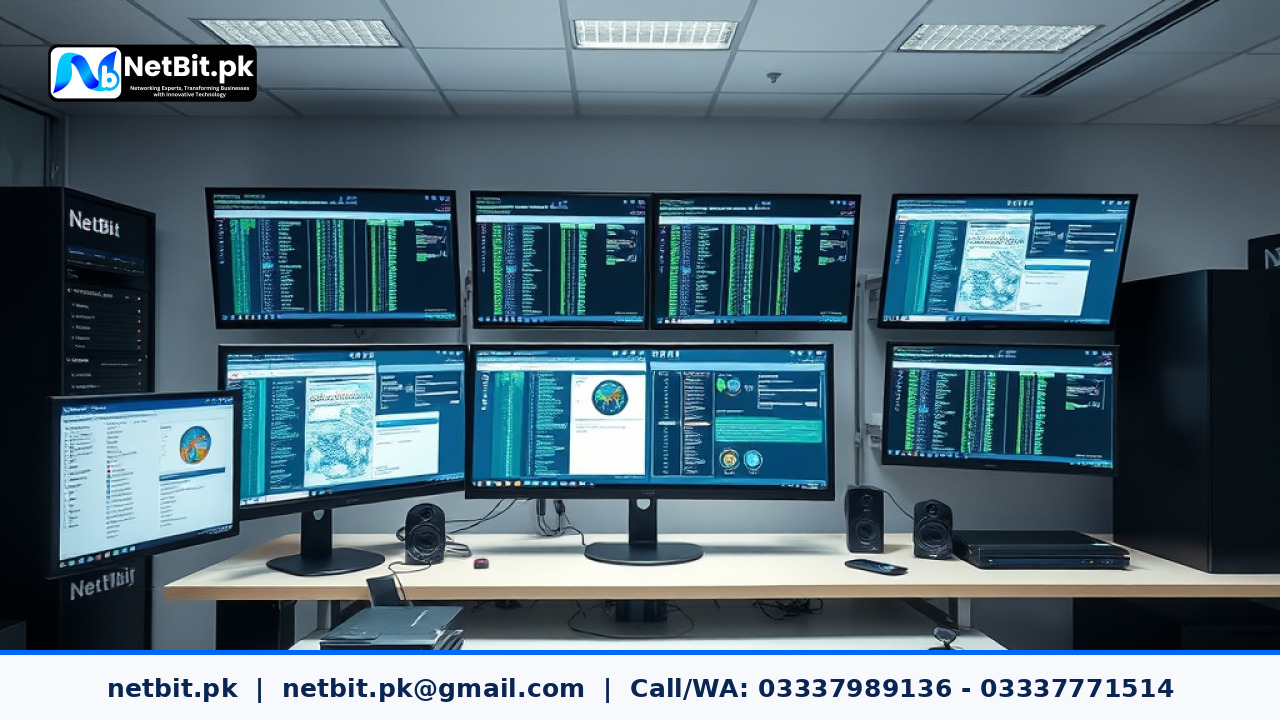
Introduction to DHCP Lease Management
Managing internet and local network addresses is a core part of maintaining a reliable office IT infrastructure. When employees arrive at work with laptops, phones, and printers, their devices automatically request an IP address from your router or network server. This process relies on the Dynamic Host Configuration Protocol, commonly known as DHCP.
A DHCP lease is simply the amount of time that a specific IP address is assigned to a particular device. Once that time expires, the device must renew its lease. Choosing the right lease duration is important for preventing network slowdowns and address conflicts. If your lease time is too short, your router gets overwhelmed with renewal requests. If it is too long, abandoned devices hold onto IP addresses, eventually leaving new devices unable to connect.
Assessing Your Office Network Requirements
Before changing any settings on your network gateway, you need to understand your office environment. Different types of businesses have different network habits. A busy co-working space sees dozens of visitors daily, while a quiet corporate office hosts the same permanent staff every day.
- Fixed Workstations: Desktop computers, servers, and network printers rarely move. They should ideally have reserved static IP addresses outside the DHCP pool.
- Employee Laptops: Staff members connect and disconnect daily as they move to meeting rooms or work remotely.
- Guest Devices: Visitors connect temporarily and require quick assignment and fast expiration of their temporary addresses.
Take a quick inventory of how many active devices connect to your IT infrastructure daily. This helps you size your local subnet properly before adjusting lease timers.
Step-by-Step Guide to Adjusting DHCP Lease Times
Most business routers and local domain controllers allow administrators to adjust DHCP lease settings through a web-based dashboard. Follow these steps to configure optimal lease durations for a standard office setup.
- Log Into Your Network Gateway: Open a secure web browser on a secure office computer and enter your router or firewall admin panel IP address. Log in using your secure administrator credentials.
- Locate the DHCP Server Settings: Navigate to the network settings, LAN settings, or DHCP server configuration tab.
- Review the Current Lease Duration: Look for fields labeled lease time, lease duration, or address holding time. Many default settings are set to eight hours or twenty-four hours.
- Calculate the Best Duration: For standard offices with stable employee devices, an eight-hour to twelve-hour lease time works well. This covers a full working day without forcing mid-day renewals. If you run a public venue or a busy office with heavy visitor turnover, a shorter two-hour lease is often safer.
- Save and Apply Changes: Enter your new time value, save the configuration, and restart the DHCP service if the router prompts you to do so.
Testing and Verifying Your Network Stability
After updating your DHCP settings, monitor your network devices to ensure everything connects smoothly. Check your router logs to confirm that renewals are happening without connection drops. Proper configuration protects your IT infrastructure from sudden address shortages and keeps daily business operations running without interruption.
Partner with NetBit for Your Technology Needs
Maintaining a dependable office network requires ongoing attention and proper hardware configuration. If your business needs expert guidance to optimize local servers, routers, and overall network performance, the specialists at NetBit tech and software house are ready to help you build a secure and scalable digital foundation. Contact us today to become a client and let NetBit tech enhance your business connectivity.


Reader comments.
Share your question, suggestion or experience related to this article.
No comments yet
There are no approved comments on this article yet. You can be the first person to leave one.