
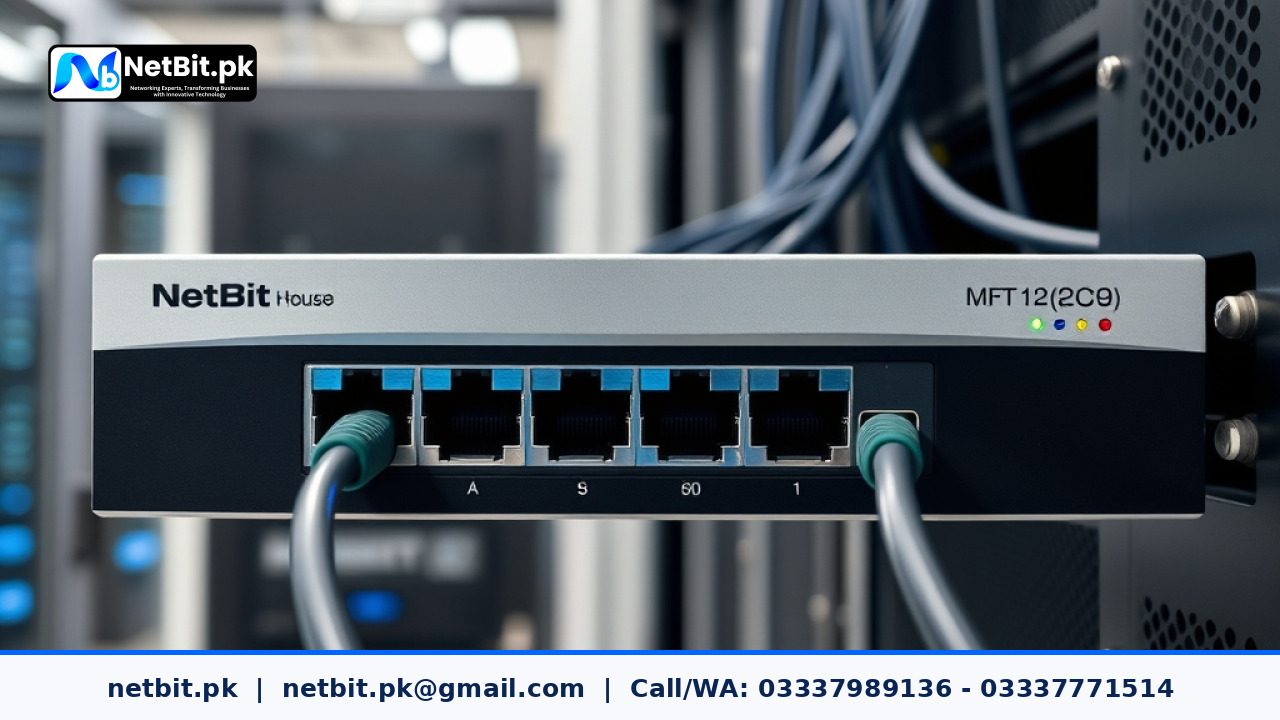
Internet connectivity is the backbone of modern office operations. Whether your team relies on cloud storage, customer communication tools, remote desktop sessions, or central databases, an unexpected internet outage can halt work across your entire organization. Local Internet Service Providers (ISPs) frequently experience temporary fiber cuts, routing maintenance, or power disruptions. Relying on a single internet connection creates a vulnerable single point of failure in your office IT infrastructure.
To ensure continuous operations, forward-thinking businesses install a second backup internet line and configure dual-WAN failover routing on their primary network router. When your primary connection fails, the router automatically shifts all network traffic to the secondary line within seconds. Once the primary line recovers, traffic smoothly switches back without manual intervention. In this tutorial, the engineering team at netbit tech walks you through the step-by-step process of configuring dual-WAN failover routing for your business network.
Prerequisites for Dual-WAN Failover Setup
Before modifying your office router settings, ensure you have the following components prepared:
- Two Independent ISP Connections: Ideally from two completely different service providers using distinct physical medium (for example, fiber optic for primary and high-speed wireless for secondary).
- A Multi-WAN Edge Router: Hardware router with at least two configurable WAN Ethernet ports running software like MikroTik RouterOS, PfSense, Ubiquiti UniFi, or Cisco IOS.
- Network Credentials: Static IP details, subnet masks, gateway addresses, and DNS servers supplied by both ISPs.
- Administrative Router Access: Local web console or SSH credentials for your primary office router.
Step 1: Physical Port Allocation and Cable Connections
First, physically connect your internet modems or fiber ONTs to designated ports on your business router. Assigning dedicated hardware interfaces keeps your IT infrastructure organized and easy to troubleshoot.
- Connect the Ethernet cable from your primary ISP modem into physical port
WAN1(or Ethernet Port 1). - Connect the Ethernet cable from your backup ISP modem into physical port
WAN2(or Ethernet Port 2). - Connect your main local area network (LAN) switch to port
LAN1(or designated bridge interface).
Step 2: Assigning Interface IP Configurations
Access your router control panel to configure each WAN interface according to your ISP specifications. Open your management console and follow these steps:
Configuring Primary Interface (WAN1)
Assign your static IP address or enable DHCP client on WAN1. For static configurations, input the public IP, subnet mask, and default gateway provided by your primary internet provider:
Interface: WAN1 | IP: 192.168.10.2/24 | Gateway: 192.168.10.1
Configuring Secondary Interface (WAN2)
Configure the backup interface WAN2 with the second provider's network parameters. Ensure that WAN2 operates on a completely different subnet from WAN1 and your internal LAN to prevent routing conflicts:
Interface: WAN2 | IP: 10.0.0.2/24 | Gateway: 10.0.0.1
Step 3: Setting Up Automated Network Health Probes
A static default route only detects failure if an Ethernet cable is physically disconnected from the router port. However, most ISP outages occur further upstream while the local cable physical connection stays alive. To detect true line failures, you must set up active ICMP ping probes (health checks).
Configure continuous ping probes targeted at reliable external public IP addresses (such as Google DNS 8.8.8.8 or Cloudflare DNS 1.1.1.1) through both WAN gateways:
- Set the check interval to 5 seconds.
- Set the timeout threshold to 1000 milliseconds.
- Set the failure count to 3 consecutive dropped packets before declaring the interface down.
When the probe on WAN1 fails three times in a row, the router automatically marks WAN1 as inactive and updates the internal routing table.
Step 4: Defining Routing Priorities and Metric Values
The core mechanism of failover routing relies on route distance metrics. When two valid routes exist for destination 0.0.0.0/0 (all internet traffic), the router always picks the route with the lower distance metric.
- Create a primary default route pointing to your
WAN1gateway with Distance / Metric = 1. - Create a secondary default route pointing to your
WAN2gateway with Distance / Metric = 2. - Attach the ICMP health check probe configured in Step 3 to the
WAN1route entry.
Under normal conditions, both physical lines are active, but because WAN1 has a lower metric of 1, all office traffic flows through WAN1. If the health probe on WAN1 fails, the system temporarily disables the WAN1 route. The router immediately starts forwarding traffic through the WAN2 route, which now has the lowest active metric.
Step 5: Configuring Outbound NAT and Connection Tracking Rules
For internal computers to access external websites through both internet lines, you must configure Network Address Translation (NAT) masquerade rules on both WAN interfaces:
- Add Outbound NAT Rule 1: Action = Masquerade | Out Interface =
WAN1 - Add Outbound NAT Rule 2: Action = Masquerade | Out Interface =
WAN2
Additionally, enable connection tracking timeout flush rules. When failover occurs, clearing existing state tables forces active applications (like web browser sockets and messaging clients) to reconnect over the active WAN2 line immediately without hanging.
Step 6: Testing Failover and Failback Execution
Testing your dual-WAN installation ensures your business IT infrastructure behaves as expected during an actual emergency:
- Start a continuous command line ping on an office workstation:
ping -t 8.8.4.4. - Unplug the main patch cable connected to
WAN1or block gateway ping traffic in the firewall. - Observe the ping response on the workstation. You should see 1 to 3 dropped packets before pings resume smoothly through the backup connection.
- Plug the cable back into
WAN1. Within 15 to 30 seconds, the router health probe will pass, and traffic will seamlessly switch back to your primary ISP.
Transform Your Office Network Reliability with NetBit Tech and Software House
Are unexpected internet disruptions, slow internal routing, or unoptimized network hardware holding your business back from reaching its full potential? Leaving your office network to chance creates constant stress and invisible financial loss every time connectivity drops. You deserve complete confidence in your systems—knowing that your team can work uninterrupted, serve clients without delays, and scale operations effortlessly.
At NetBit Software House & Technology, our experienced infrastructure engineers design, build, and optimize robust business networks engineered for zero unexpected downtime. From tailored dual-WAN routing setups to complete server room management, netbit software provides end-to-end guidance and hands-on implementation. Whether you operate in netbit khuzdar or anywhere across the country, partner with netbit tech software house to future-proof your business IT infrastructure today. Visit netbit.pk now and request a comprehensive network audit with our expert technical team.



Reader comments.
Share your question, suggestion or experience related to this article.
No comments yet
There are no approved comments on this article yet. You can be the first person to leave one.