
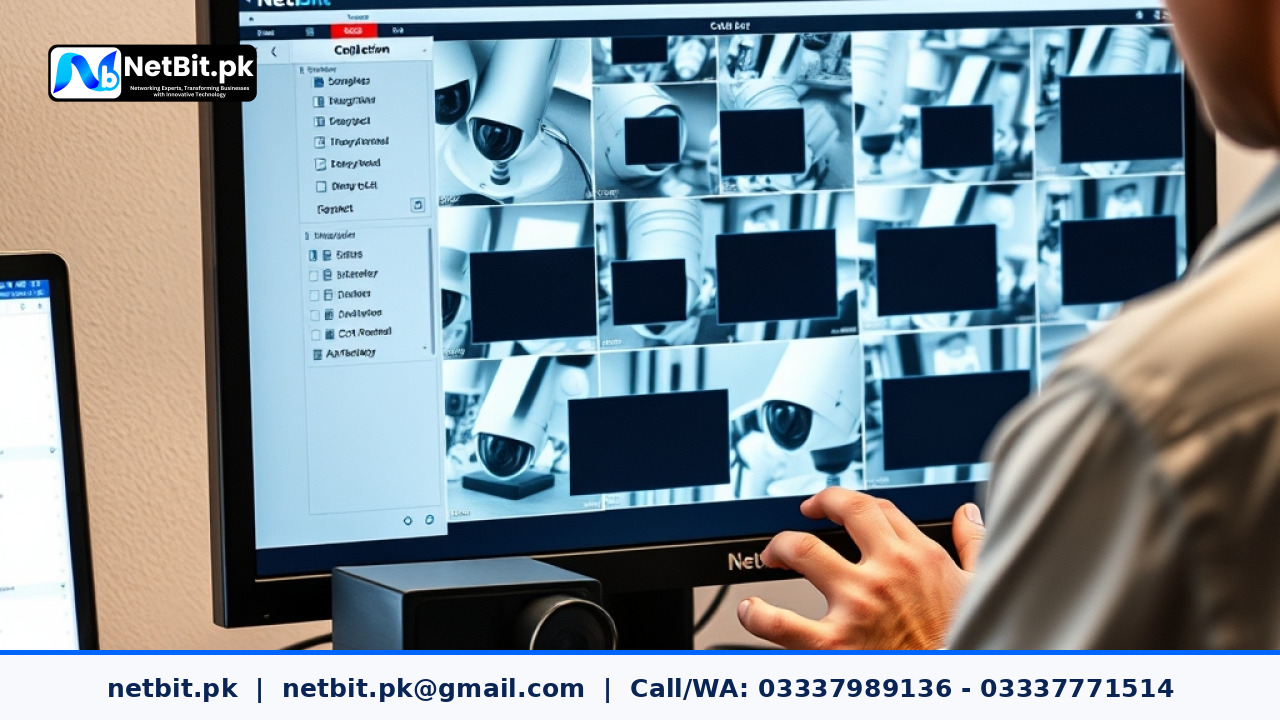
Understanding Privacy Masking in Modern CCTV Systems
Surveillance systems are essential for securing commercial properties, office buildings, retail outlets, and industrial premises across Pakistan. However, capturing 24/7 video footage comes with legal, ethical, and practical privacy concerns. Modern IP cameras and Network Video Recorders (NVRs) include a built-in feature called Privacy Masking. This tool allows security administrators to block out specific sections of a camera's field of view so that sensitive visual data is neither shown on live monitors nor recorded onto hard drives.
Whether you operate an office in Karachi, a retail store in Quetta, or an enterprise campus in Khuzdar, learning how to configure privacy masks properly ensures your business maintains robust security while respecting personal boundaries and sensitive financial data. In this comprehensive guide, the technical specialists at NetBit Software House walk you through the precise process of planning, setting up, and verifying privacy masking on commercial CCTV systems.
Why Commercial Facilities in Pakistan Need Privacy Masking
Installing security cameras without privacy considerations can lead to accidental exposure of proprietary information or legal disputes with neighbors. Common practical applications for privacy masking include:
- Financial & Banking Terminals: Masking ATM pin pads, cash register keypads, and card swiping terminals so customer PINs and confidential transactions are never captured on video.
- Computer Screens & Workstations: Blocking employee computer monitors in accounting, human resources, or executive offices to prevent corporate secrets or personal data from being recorded.
- Residential & Neighboring Boundaries: Ensuring outdoor cameras covering business perimeters do not peek into adjacent private yards, residential windows, or neighboring balconies.
- Restricted High-Security Zones: Blacking out safe lock codes, security access panels, or sensitive inventory tags in warehouses.
Step-by-Step Guide to Setting Up CCTV Privacy Masks
Setting up privacy masks requires administrative access to your DVR or NVR management system, or directly to individual IP camera web interfaces. Follow these structured steps to execute the configuration cleanly.
Step 1: Access the Device Management Interface
To begin configuration, open a web browser on a computer connected to the same local network as your surveillance system. Enter the IP address of your NVR or IP camera into the browser address bar. Alternatively, log directly into the local Graphical User Interface (GUI) of your NVR using an attached monitor and mouse.
Sign in using your administrator credentials. Ensure that your firmware is updated to prevent layout discrepancies during configuration.
Step 2: Navigate to Camera Display & Video Overlay Settings
Once logged in, follow the system menu structure to reach the privacy masking configuration page:
- Click on Configuration or Setup from the primary top menu.
- Navigate to System Settings or Camera Management.
- Select Display Settings or Video Overlay.
- Click on the Privacy Mask tab. Select the target camera channel from the dropdown list.
Step 3: Enable and Define Privacy Masking Zones
Most commercial NVR software systems support between 4 to 8 independent privacy mask blocks per camera channel. To set them up:
- Check the box labeled
Enable Privacy MaskorEnable Masking. - Click the Draw Area or Add Zone button.
- Left-click and drag your mouse across the live camera preview box to draw a rectangular shape over the sensitive area (such as a desk screen or window).
- Adjust the corners of the box using your mouse cursor to ensure complete coverage of the target area without obscuring critical security paths.
Step 4: Select Masking Type and Color Parameters
Depending on your camera manufacturer, you can choose how the mask appears on screen:
- Solid Color Block: Fills the selected area with a solid opaque color (black, gray, or white). This is the standard choice for full visual suppression.
- Mosaic / Pixelation: Blurs the underlying pixels while keeping general movement visible. This is ideal when motion detection is still needed behind the mask, but fine details must remain private.
Select your preferred style and click Save or Apply to store the updated channel parameters.
Step 5: Verify Live Stream and Recorded Footage
Never assume the privacy mask is fully functional until you test it across all viewing channels:
- Switch back to the main Live View screen and check that the blacked-out box covers the exact target area.
- Walk past the masked region or test the covered workstation to confirm that sensitive movements and keypads remain completely unreadable.
- Access the Playback tab and review historical footage recorded after applying the mask to ensure the block is permanently embedded into the recorded video stream.
Key Best Practices for Privacy Mask Configuration
To ensure your privacy masks remain reliable over time, keep the following technical considerations in mind:
- PTZ Camera Considerations: Pan-Tilt-Zoom (PTZ) cameras require 3D privacy masking features. Ensure your PTZ camera scales and moves the privacy block automatically as the lens pans, tilts, or zooms. Standard static masks will drift away from the target when a PTZ camera rotates.
- Camera Calibration & Re-alignment: Physical bumps, strong winds, or maintenance repositioning can shift a fixed camera's lens. Periodically audit your privacy masks to verify they have not shifted off target.
- Backup Configuration Files: Always export a backup file of your NVR system settings after configuring complex privacy zones. If a factory reset occurs, you can restore your customized masks instantly.
Frequently Asked Questions (FAQs)
Can privacy masks be removed during playback by an administrator?
No. When properly saved, privacy masks are hard-coded into the recorded video stream at the hardware level. Once recorded, no software can decode or uncover the visual content behind the solid mask.
Does privacy masking disable motion detection in that area?
On most commercial systems, background motion detection continues to work behind the mask unless you manually erase the motion detection grid for that zone in your NVR settings.
How many privacy zones can I set per camera?
Standard IP systems support 4 privacy zones per channel, while high-end enterprise cameras allow up to 8 or 16 custom zones per lens.
Professional CCTV Surveillance Solutions with NetBit
Designing, installing, and configuring a reliable security infrastructure requires deep technical knowledge and precision. At NetBit Tech, located in Khuzdar, Pakistan, we deliver complete IT and surveillance services tailored to the needs of Pakistani businesses, office facilities, and commercial operations.
Our technical team provides complete turnkey solutions, including high-definition IP camera installation, structured Cat6 network cabling, managed switch deployments, fiber patch link setup, and custom network security configurations. Whether you need to audit an existing surveillance setup, secure sensitive workspace areas, or build a robust IT network from the ground up, NetBit Software House delivers reliable engineering standards and hands-on expertise.
Ready to upgrade your enterprise security and network infrastructure? Contact NetBit Khuzdar today to consult with our engineers and get a tailored setup plan for your organization.



Reader comments.
Share your question, suggestion or experience related to this article.
No comments yet
There are no approved comments on this article yet. You can be the first person to leave one.