
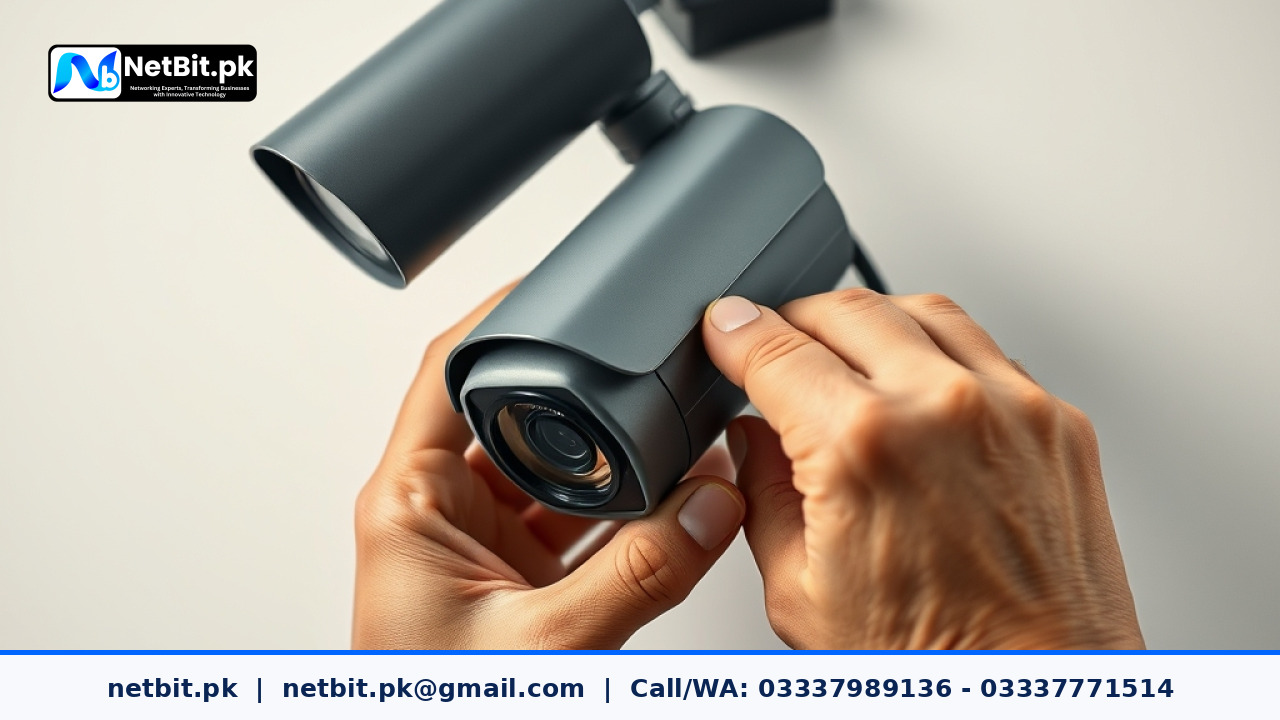
Modern IP surveillance systems are essential for securing commercial properties, retail stores, and corporate offices across Pakistan. However, business owners and facility managers often run into a common issue: live video feeds lag or fail to load when viewed remotely on mobile phones or lower-speed internet connections. This issue usually occurs because all video requests are fetching the high-resolution main video stream instead of a lightweight secondary stream.
By properly configuring video sub-streams on your network cameras and Network Video Recorders (NVRs), you can maintain crisp full-HD or 4K recordings on local hard drives while delivering smooth, low-latency live previews to remote smartphones and control monitors. In this tutorial, netbit tech walks you through the step-by-step process of configuring sub-streams for optimal CCTV network performance.
Understanding Main Streams vs. Sub-Streams
Most IP surveillance cameras support multi-streaming capabilities, allowing the camera hardware to encode and transmit two or more separate video feeds simultaneously:
- Main Stream: High-resolution feed (e.g., 4MP, 5MP, or 4K UHD) recorded directly to your NVR or local storage drive. It consumes higher bandwidth and storage space to capture fine visual details like faces and license plates.
- Sub-Stream: Lower-resolution feed (e.g., D1, VGA, or 720p) designed for live multi-camera grid displays, mobile viewing apps, and remote monitoring over public internet connections.
Relying solely on the main stream for every live screen view quickly saturates network switches and routers. Configuring sub-streams keeps local recording quality at its maximum while preventing network congestion.
Step 1: Access the Camera or NVR Management Interface
To begin configuring video streams, connect to your surveillance system's web administrative portal or desktop management software:
- Open a standard web browser on a computer connected to the same local office network.
- Type the IP address of your camera or NVR into the address bar (for instance,
192.168.1.108). - Log in using your administrative username and secure password.
- Navigate to the Configuration or Setup menu, then select Video/Audio or Media Settings.
Step 2: Optimize the Main Stream Settings for Recording
Before adjusting the secondary stream, ensure your main stream parameters are optimized for clear visual evidence without wasting storage capacity unnecessarily.
- Stream Type: Set to
Main Stream (Normal). - Video Encoding: Choose
H.265orH.265+(if supported) to reduce file sizes by up to 50% compared to legacy H.264 formats. - Resolution: Select the maximum native camera resolution (e.g.,
2560x1440for 4MP). - Bitrate Control: Select
VBR (Variable Bit Rate)to allow the system to allocate higher bandwidth during activity and conserve bandwidth when scenes are static. - Frame Rate (FPS): Set between
15 FPSand20 FPS. For standard office monitoring in Pakistan, 15 to 20 frames per second provides fluid motion while saving substantial storage space.
Step 3: Configure the Sub-Stream Parameters
Next, switch to the sub-stream tab to set up a lighter feed for remote monitoring across desktop multi-views and mobile applications.
- In the stream selection drop-down menu, select
Sub-Stream. - Set the Resolution to
640x360,640x480, orD1 (704x576). This resolution is ideal for mobile screens and 16-camera grid views. - Adjust the Frame Rate to
12 FPSor15 FPS. This maintains smooth motion playback without overloading remote internet bandwidth. - Set the Bitrate Type to
CBR (Constant Bit Rate)orVBRwith a conservative maximum limit, such as512 Kbpsor1024 Kbps. - Click Save or Apply to commit your new settings.
Step 4: Update Mobile Apps and Client Software
Once sub-streams are active on your cameras, you must ensure your client applications are configured to pull the sub-stream automatically during multi-camera grid views:
- Mobile Apps: Open your smartphone app settings (such as Hik-Connect, gDMSS, or iDMSS) and navigate to playback/live display options. Set the default live display resolution to Fluent or Sub-Stream instead of Clear/Main Stream.
- Desktop Video Management Software (VMS): In your central control room software, configure the layout so that multi-window views (4-channel, 9-channel, or 16-channel grids) load sub-streams, while double-clicking a single camera switches automatically to the main stream.
Troubleshooting Common Video Stream Issues
1. Dark or Pixelated Sub-Stream Images
If the sub-stream image appears excessively blurry or pixelated, increase the sub-stream resolution slightly (e.g., from 352x288 up to 720p) or raise the maximum bitrate limit to 1024 Kbps.
2. High Network Latency and Buffering
If live feeds freeze regularly when checking your office cameras remotely in Pakistan, verify that your router or firewalls are not throttling video traffic, and confirm that mobile apps are truly fetching the sub-stream rather than full-resolution feeds.
Frequently Asked Questions
Does changing sub-stream settings affect recorded footage?
No. Your local NVR records the high-definition Main Stream continuously. Changes made to the Sub-Stream only alter the secondary preview feed used for multi-screen grids and remote phone access.
What is the difference between CBR and VBR?
CBR (Constant Bit Rate) holds bandwidth consumption steady regardless of scene motion. VBR (Variable Bit Rate) dynamically increases bitrate during motion and drops it during quiet periods, saving overall disk space.
Professional Security & Networking Solutions with NetBit Tech
Setting up robust corporate surveillance requires more than just installing hardware—it demands clean network architecture, optimized camera streams, structured Cat6 cabling, and properly configured NVR storage systems. At netbit software house in Khuzdar, our experienced technical teams design and implement reliable CCTV surveillance setups, office network infrastructures, managed switches, and custom software systems tailored for Pakistani businesses.
Whether you need to upgrade an existing commercial security setup, optimize office network bandwidth, or build custom management tools, netbit khuzdar delivers hands-on engineering excellence. Contact netbit today to schedule a technical consultation for your business premises.


Reader comments.
Share your question, suggestion or experience related to this article.
No comments yet
There are no approved comments on this article yet. You can be the first person to leave one.