
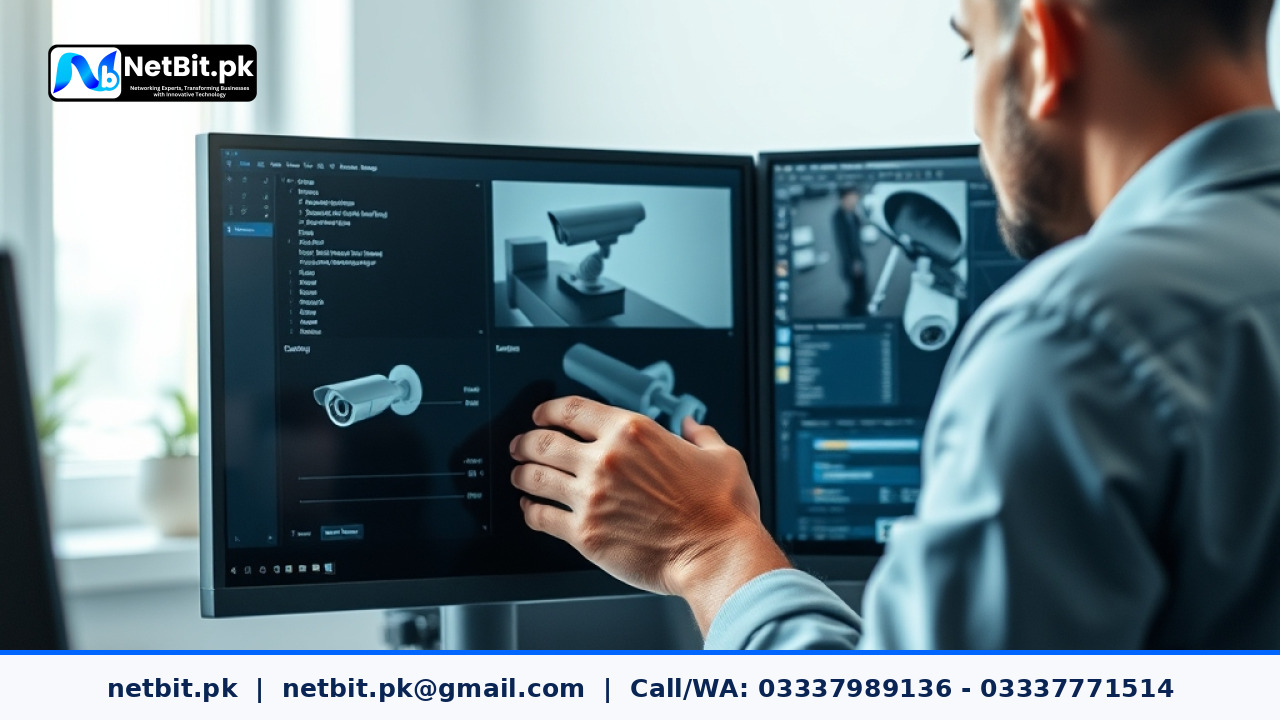
Understanding Video Bitrate in Commercial CCTV Systems
When installing or managing a commercial surveillance network, getting the physical camera angles and network switches right is only half the battle. Managing how much digital data your cameras record and transmit is critical for long-term reliability. Video bitrate determines the volume of data generated by your security cameras per second. For businesses across Pakistan, configuring this properly prevents overloaded hard drives, lagging surveillance feeds, and network congestion.
Whether you are monitoring a retail storefront in Khuzdar or managing a multi-floor commercial building, understanding the difference between Constant Bitrate (CBR) and Variable Bitrate (VBR) ensures you get crystal-clear footage without running out of storage space prematurely.
Constant Bitrate (CBR) vs. Variable Bitrate (VBR)
Before adjusting your camera settings through the NVR or DVR interface, you must choose the right bitrate encoding mode for your environment:
- Constant Bitrate (CBR): CBR allocates a fixed amount of data bandwidth regardless of what is happening in the camera's field of view. This is predictable and makes network bandwidth planning easier, but it can waste storage space in static hallways or corridors where little movement occurs.
- Variable Bitrate (VBR): VBR adjusts data generation dynamically. When the scene is quiet, the bitrate drops to save storage space. When motion occurs—such as a vehicle entering the gate or staff walking through a lobby—the bitrate automatically increases to capture sharp detail. VBR is typically recommended for most commercial deployments.
Step-by-Step Guide to Configuring Bitrate Settings
Properly setting up your camera stream requires careful balancing based on your available Network Video Recorder (NVR) storage capacity and local network bandwidth:
- Access the NVR/DVR Local Interface: Log into your security system using an administrator account directly via a connected monitor or through a secure local web browser.
- Navigate to Encoding Parameters: Locate the configuration menu, often labeled under
Camera > EncodingorStream Setup. Ensure you are modifying the main stream (Main Stream) used for recording rather than the lower-resolution sub-stream used for remote mobile viewing. - Select the Codec Standard: Choose an efficient compression standard such as H.265 or H.264+. Modern codecs significantly reduce bandwidth usage without sacrificing visual clarity.
- Set Resolution and Framerate First: Define your target resolution (e.g., 1080p or 4MP) and framerate (usually 15 to 20 FPS is sufficient for standard security monitoring) before touching bitrate limits.
- Adjust the Bitrate Target: If using VBR, set an appropriate upper ceiling limit. For a standard 1080p security camera, a ceiling between 2048 Kbps and 4096 Kbps generally provides a healthy balance between image forensic quality and hard drive preservation.
- Save and Monitor Storage Duration: Apply the settings and check your NVR storage calculation tool. Aim to maintain at least 15 to 30 days of rolling video archive history depending on your local compliance requirements.
Common Configuration Mistakes to Avoid
Many administrators make simple errors that degrade their surveillance network performance:
- Maxing out bitrates blindly: Setting every camera to the highest possible bitrate will quickly saturate your local network switch uplinks and fill up hard drives within days.
- Ignoring sub-stream settings: Forgetting to lower the sub-stream bitrate can cause severe lagging when viewing multiple live cameras on a mobile device or remote desktop.
- Mismatched frame rates and bitrates: Pairing a high frame rate with an artificially low bitrate creates heavy digital artifacting and blurry ghosting during motion events.
Professional CCTV and Networking Solutions by NetBit Tech
Optimizing surveillance networks and physical IT infrastructure requires technical precision. If your business requires a reliable security overhaul, structured Cat6 cabling, managed network switches, or custom software integrations, the experts at NetBit Software House & Technology (netbit.pk) are ready to assist.
Based in Khuzdar, netbit provides end-to-end digital and physical technology services tailored to Pakistani businesses. Contact netbit tech today to discuss how our professional team can secure your premises and streamline your operational infrastructure.


Reader comments.
Share your question, suggestion or experience related to this article.
No comments yet
There are no approved comments on this article yet. You can be the first person to leave one.