
Understanding Hardware Bottlenecks in Office Environments
In many Pakistani businesses, office computers are expected to run for years without an upgrade. Over time, employees may notice that applications take longer to open, files freeze during saving, and multitasking becomes frustratingly slow. These issues are often caused by hardware bottlenecks—a situation where one specific component limits the performance of the entire system, even if the other parts are capable and modern.
At netbit, we frequently help local organizations in Khuzdar and across Pakistan troubleshoot sluggish workstations. Understanding where your hardware is struggling allows you to invest your maintenance budget wisely, upgrading only what is necessary rather than purchasing entirely new systems.
Common Causes of Office Computer Slowdowns
Before jumping into diagnostics, it helps to understand which components typically cause system constraints in a standard office setting:
- RAM Limitations: Running multiple browser tabs alongside accounting software or heavy spreadsheets quickly exhausts available memory.
- Storage Bottlenecks: Older mechanical hard drives (HDDs) struggle with modern operating system demands, causing high disk usage percentages.
- Thermal Throttling: Dust accumulation inside computer chassis traps heat, forcing processors to slow down to prevent permanent damage.
Step-by-Step Guide to Diagnosing Your Workstation
You do not need advanced engineering tools to find out what is slowing down your office computers. Follow this practical maintenance approach:
- Open Task Manager: On Windows systems, press
Ctrl + Shift + Escto open the Task Manager. Click on the 'Performance' tab to view real-time utilization graphs for your CPU, Memory (RAM), and Disk (Storage). - Identify Peak Utilization: Watch these metrics while running your standard business applications. If your Memory is constantly sitting at 90% or higher, or your Disk usage is pegged at 100% while processing simple tasks, you have identified your primary bottleneck.
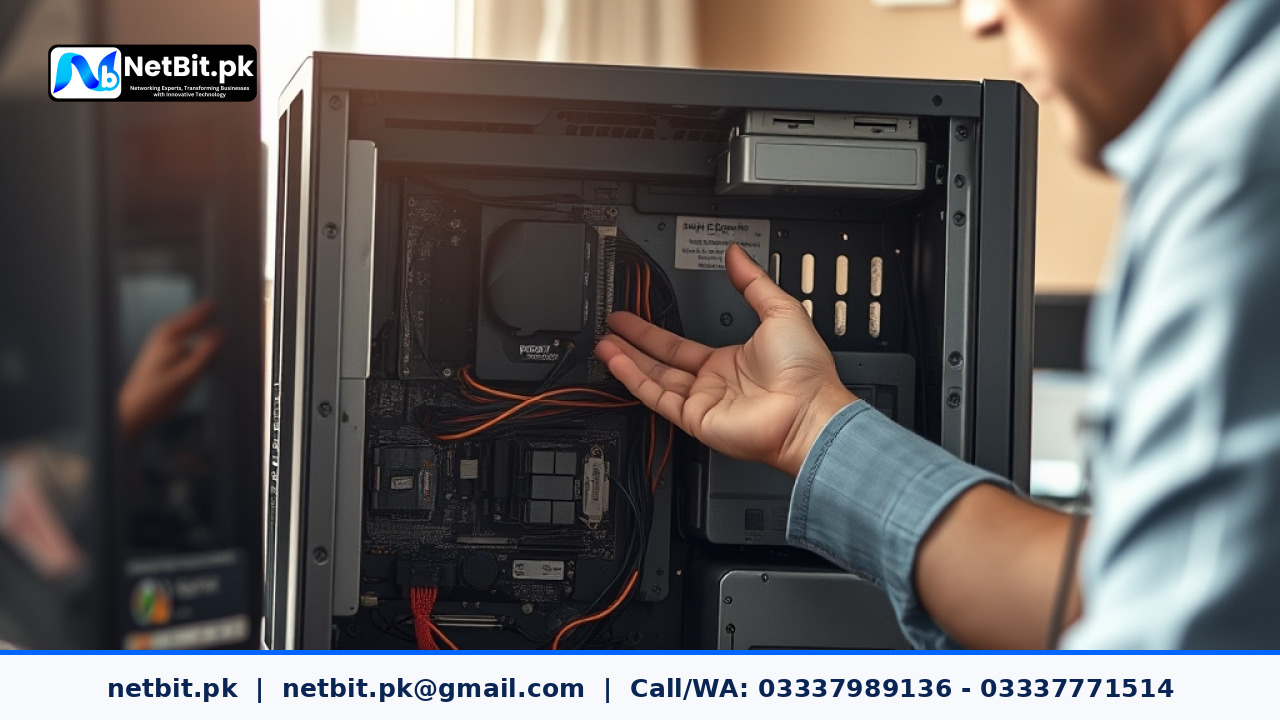
- Inspect Physical Components: Power down the machine, safely open the casing, and check for dust buildup around cooling fans and heat sinks. A choked cooling system directly degrades processing speeds.
Frequently Asked Questions
How often should office computers undergo maintenance checks?
We recommend performing software and hardware diagnostic reviews at least once every quarter to catch failing components before they halt daily operations.
Is it better to upgrade RAM or switch to an SSD?
If your computer currently uses a mechanical hard drive for its operating system, upgrading to a Solid State Drive (SSD) provides the most noticeable performance improvement for everyday office tasks.
Partner with NetBit Tech for Professional IT Maintenance
Maintaining reliable IT infrastructure is vital for keeping your business competitive. If your office workstations are slowing down or your network needs expert attention, do not let downtime affect your bottom line. Netbit software house provides comprehensive maintenance and support services tailored to businesses throughout Pakistan. Whether you need custom software, reliable networking solutions, or routine hardware diagnostics, our experienced team at netbit khuzdar is ready to assist. Contact netbit today to schedule an evaluation and keep your business running smoothly.

Reader comments.
Share your question, suggestion or experience related to this article.
No comments yet
There are no approved comments on this article yet. You can be the first person to leave one.