
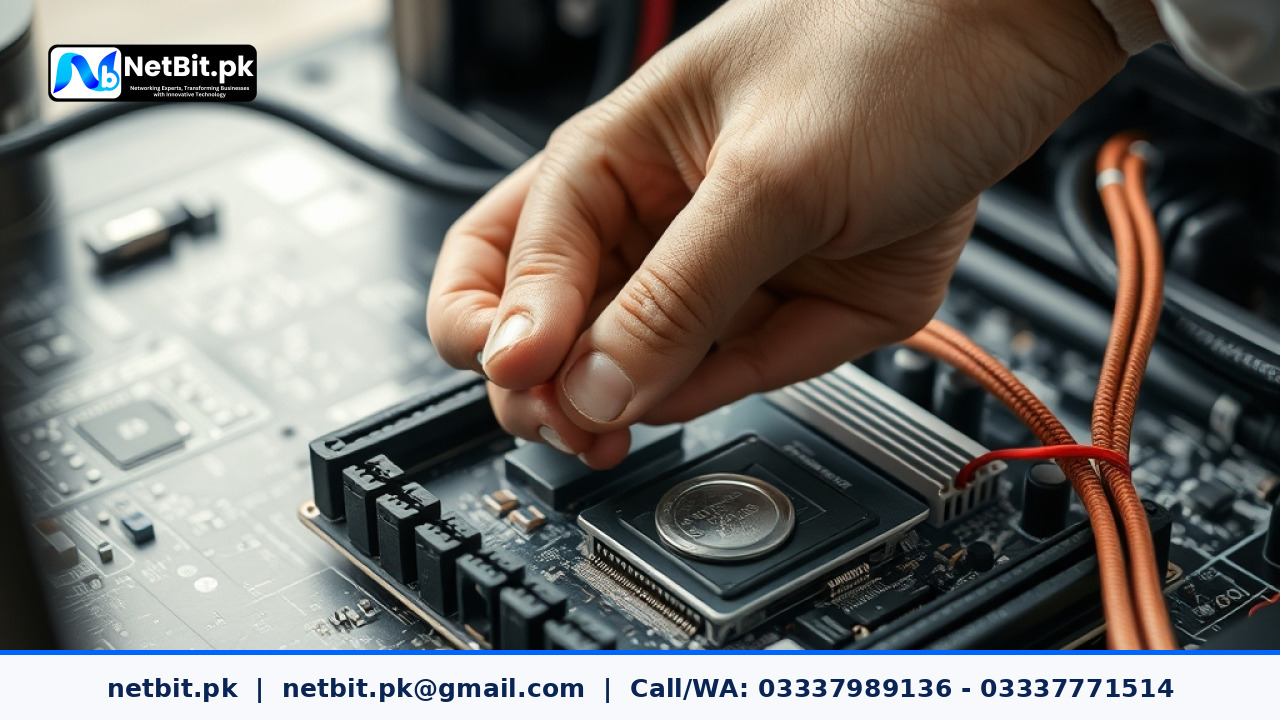
Understanding the Role of the CMOS Battery in Business Computers
For small businesses and corporate offices in Pakistan, maintaining reliable office hardware is crucial to daily operations. Every desktop computer relies on a small coin-cell battery—known as the CMOS battery—located directly on the motherboard. This battery supplies continuous, low-level power to the complementary metal-oxide-semiconductor chip even when the system is shut down and unplugged from the main power supply. The CMOS chip stores vital system settings, including the hardware configuration, date, time, and low-level system parameters collectively known as the BIOS (Basic Input/Output System) or UEFI configuration.
When this battery fails, office computers often exhibit frustrating symptoms. You might notice that every morning when staff power on their machines, the system clock has reset to a default factory date, or the computer halts during startup with a CMOS Checksum Error or RTC Battery Low warning. Ignoring these early warning signs can lead to unexpected boot failures, operating system licensing validation errors due to incorrect timestamps, and interrupted workflow. Regular hardware maintenance by organizations like netbit tech includes monitoring and replacing these components before they cause operational downtime.
Step-by-Step Guide to Executing a Safe CMOS Battery Replacement
Replacing a CMOS battery is a straightforward hardware maintenance task, but it requires careful handling to avoid electrostatic discharge (ESD) damage to sensitive motherboard components. Follow this methodical, step-by-step approach to perform the replacement safely in an office environment.
- Power Down and Disconnect: Shut down the desktop computer completely through the operating system. Turn off the power supply switch at the back of the casing, and unplug the power cord, monitor cables, and all peripheral USB devices.
- Discharge Residual Power: Press and hold the computer's physical power button for approximately 5 to 10 seconds. This drains any residual electrical charge left in the capacitors on the motherboard.
- Open the System Chassis: Remove the side panel of the computer tower by unscrewing the mounting thumbscrews. Place the tower flat on a clean, non-conductive wooden or anti-static workbench.
- Ground Yourself: Touch an unpainted metal surface of the computer chassis to safely discharge any static electricity from your body, or wear a properly grounded anti-static wrist strap.
- Locate the Battery: Identify the CMOS battery on the motherboard. It is typically a silver, coin-shaped CR2032 lithium battery held securely in a flat horizontal or vertical socket.
- Remove the Old Battery: Gently press the metal retaining clip outward or upward with your finger or a non-conductive plastic spudger. The battery will pop up slightly at an angle, allowing you to lift it out of the socket smoothly.
- Insert the New CR2032 Battery: Take a fresh CR2032 lithium battery. Ensure the positive (+) side faces upward (visible to you). Slide or press the new battery into the socket until the retaining clip clicks securely into place.
- Reassemble and Test: Reattach the computer side panel, reconnect the power cable and peripherals, and power on the system. Enter the BIOS/UEFI setup utility during boot to reconfigure the system time, date, and storage boot order preferences if necessary.
Best Practices for Office IT Hardware Maintenance
Proactive maintenance prevents unexpected hardware failures that disrupt business productivity. Implementing a structured routine ensures your company hardware stays functional for years:
- Maintain a Hardware Log: Keep track of when desktop computers were purchased and when internal batteries or power supplies were last serviced.
- Use Quality Replacements: Always use reputable brand CR2032 lithium cells to ensure consistent voltage delivery and long operational lifespans.
- Backup BIOS Settings: For specialized office workstations, note down custom BIOS configurations (such as AHCI/RAID modes or virtualization settings) before performing maintenance.
- Partner with Professionals: For comprehensive network switches, Cat6 structured cabling, custom software, and hardware maintenance, rely on experienced local IT specialists.
Partner with NetBit Tech for Complete IT Infrastructure Support
Managing hardware upkeep, desktop maintenance, structured networking, CCTV installations, and custom software solutions requires dedicated technical expertise. At netbit, operating as a trusted software house and technology provider based in Khuzdar, Pakistan, we deliver reliable, end-to-end IT maintenance and engineering support tailored specifically for local businesses, institutions, and growing enterprises.
Whether you need routine office computer servicing, robust networking switches and fiber patch cord deployment, custom web applications, or comprehensive technical maintenance, our team ensures your operations run seamlessly without interruption. Contact netbit khuzdar today to discuss professional service packages designed to secure and optimize your entire technology infrastructure.


Reader comments.
Share your question, suggestion or experience related to this article.
No comments yet
There are no approved comments on this article yet. You can be the first person to leave one.