
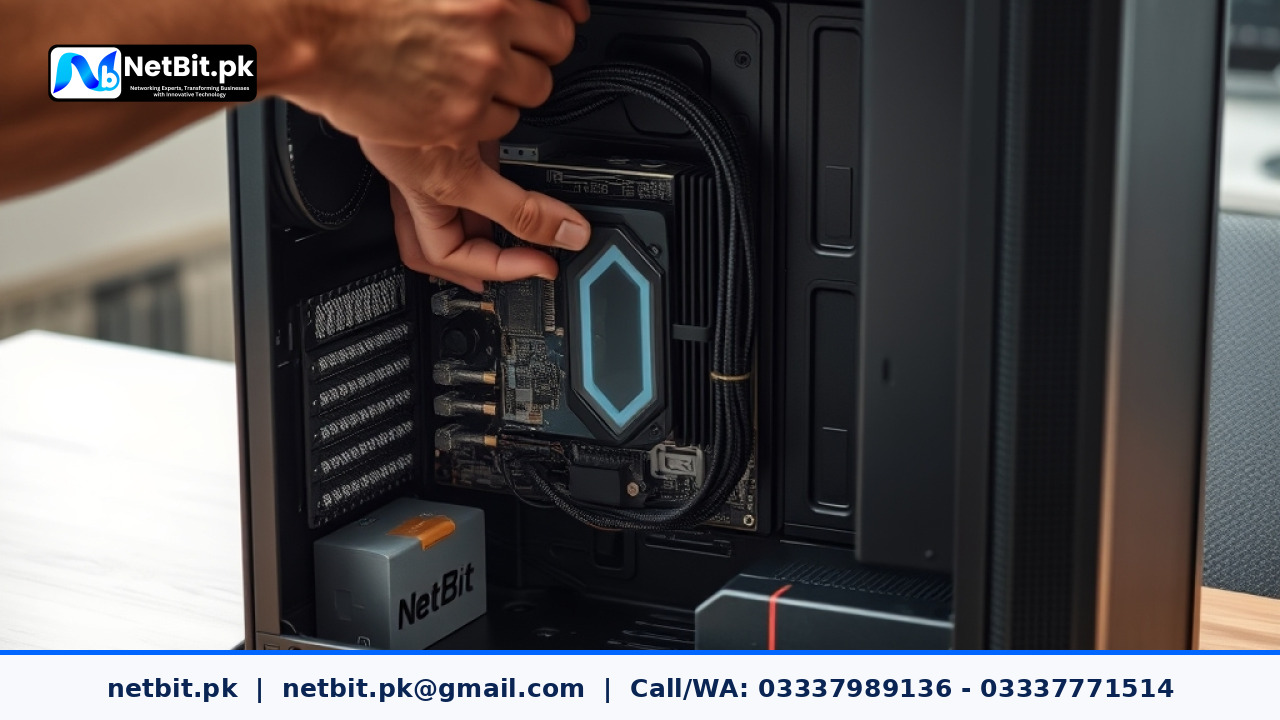
In any modern office environment across Pakistan, smooth daily operations rely heavily on stable computer systems. Whether your staff manages accounting software, customer records, web applications, or office productivity tools, hardware hardware components must communicate effectively with the operating system. This communication relies entirely on software components called hardware drivers.
When hardware drivers become outdated, corrupted, or incompatible, computer systems frequently experience sudden freezes, blue screen errors (BSOD), peripheral disconnects, and sluggish network responses. This comprehensive guide outlines practical, step-by-step methods for managing device drivers across business computer systems to ensure high reliability and zero unexpected downtime.
Understanding Hardware Drivers in Business Computer Systems
A hardware driver is a specialized piece of software that translates commands from the operating system into signals that computer hardware understands. Every component inside or connected to a desktop PC or workstation requires a functional driver—including motherboards, network interface cards (NICs), storage controllers, graphics cards, and USB peripherals.
In commercial offices, system stability often falters not because the physical hardware is failing, but because default or outdated drivers are unable to handle system updates. Proper driver management ensures that hardware resources operate efficiently without causing system-level conflicts.
Common Risks of Neglecting System Driver Updates
Ignoring driver maintenance across business workstations leads to several operational problems that disrupt daily productivity:
- System Crashes and Kernel Faults: Incompatible storage or display drivers frequently cause system instability, resulting in unexpected restarts during critical work tasks.
- Network Disconnections: Outdated network adapter drivers can drop local network connections, causing users to lose access to central file servers or cloud web applications.
- Peripheral Failures: Scanners, thermal receipt printers, and external storage drives may stop functioning correctly after routine operating system updates if corresponding hardware drivers are not updated.
- Reduced Hardware Performance: Display adapters and storage controllers often deliver lower throughput and visual lag when running on basic generic drivers instead of dedicated manufacturer drivers.
Step 1: Identifying Hardware Driver Issues in Windows
Before installing new updates, system administrators and IT staff must accurately identify which drivers require attention. In Windows-based computer systems, the built-in Device Manager tool serves as the primary diagnostic console.
Using Device Manager to Inspect Hardware Status
- Press Windows Key + X and select Device Manager from the power menu.
- Scan the device list for any expanded categories displaying a yellow exclamation mark icon next to a hardware device. This icon indicates a missing, corrupted, or faulty driver.
- Right-click the specific hardware entry and select Properties.
- Navigate to the Driver tab to view the driver provider, release date, and exact driver version currently installed.
If the driver provider is listed as generic Microsoft software for specialized hardware like dedicated graphics chips or integrated network adapters, upgrading to the official original equipment manufacturer (OEM) driver will improve hardware stability.
Step 2: Sourcing Safe and Official Hardware Drivers
One of the most common mistakes in Pakistani office environments is downloading driver update utilities or third-party automated driver installers found online. These unauthorized software packages frequently install adware, unwanted background services, or incorrect driver packages that cause permanent system instability.
Always source hardware drivers exclusively from official manufacturer channels:
- Brand Desktop Systems: Download drivers directly from official support portals of manufacturers such as Dell, HP, Lenovo, or ASUS using the exact system serial number or service tag.
- Custom Built Computer Systems: Visit the official support pages for specific component manufacturers (e.g., Intel for chipsets/network cards, Realtek for audio/LAN, NVIDIA or AMD for display hardware).
- Windows Update Catalog: For enterprise setups, drivers tested and signed by Microsoft can be retrieved through standard system updates or the official Microsoft Update Catalog.
Step 3: Clean Installation and Rollback Procedures
Installing driver updates across multiple office PCs should follow a structured process to maintain operational continuity and avoid unnecessary downtime.
Creating a System Restore Point
Before installing key system drivers—especially motherboard chipset, storage controller, or graphics drivers—always create an operating system restore point. If a new driver causes system instability, you can immediately revert the computer system to its previous working state without losing personal files.
Performing Driver Rollbacks
If a newly installed hardware driver causes system instability or hardware malfunction, Windows provides an automated rollback tool:
- Open Device Manager and select the malfunctioning hardware device.
- Right-click and select Properties, then open the Driver tab.
- Click the Roll Back Driver button.
- Select a reason for rolling back and confirm the operation. Windows will restore the previous driver binary immediately.
Step 4: Managing Automatic Driver Updates in Group Policy
For small and medium enterprise networks, automatic Windows Updates can sometimes overwrite custom, stable OEM drivers with generic updates, causing hardware components to misbehave unexpectedly.
To prevent automatic Windows Update driver replacements on professional computer systems, IT teams can adjust local group policy settings:
- Press Windows Key + R, type
gpedit.msc, and press Enter. - Navigate to:
Computer Configuration > Administrative Templates > Windows Components > Windows Update. - Locate the setting named Do not include drivers with Windows Updates.
- Double-click the policy, select Enabled, click Apply, and confirm with OK.
Enabling this policy allows security patches to install while keeping tested hardware drivers intact and controlled by your internal IT maintenance team.
Frequently Asked Questions (FAQs)
Should hardware drivers be updated if the PC is working without issues?
If a business computer system operates stably and all peripherals work as intended, routine hardware drivers (like audio or Bluetooth drivers) do not require frequent updates. However, network adapters, storage controllers, and critical security-related driver patches should be updated periodically after testing.
How often should an office perform driver maintenance across desktop systems?
A bi-annual maintenance schedule is standard for most business workstations. Critical infrastructure components, such as local server network adapters and primary workstations, should be inspected quarterly.
What should I do if a driver update results in a blue screen error?
Boot the computer system into Windows Safe Mode, open Device Manager, and perform a driver rollback or uninstall the problematic device driver. Alternatively, use Windows System Restore to revert to the system snapshot taken prior to the update installation.
Upgrade Your Business Infrastructure with NetBit Software House
Maintaining reliable computer systems, structured office networks, and tailored software solutions requires dedicated technical expertise. At NetBit Software House & Technology, based in Khuzdar, Pakistan, we provide complete, end-to-end technology solutions designed specifically for businesses, educational institutions, and commercial offices.
Our experienced team at NetBit Tech specializes in comprehensive IT maintenance, business computer systems deployment, enterprise networking (including Cat6 cabling, fiber patch management, switches, LiteBeam, and PowerBeam links), custom software development, web applications, and professional CCTV surveillance installations.
Whether you need to streamline your office workstations, deploy custom business software, or secure your physical premises with reliable network equipment, NetBit Khuzdar is your trusted technology partner. Contact NetBit today to discuss your infrastructure requirements and schedule a professional technical consultation for your business.


Reader comments.
Share your question, suggestion or experience related to this article.
No comments yet
There are no approved comments on this article yet. You can be the first person to leave one.