

Understanding Link State Flapping in Business Networks
For any growing office or business in Pakistan, a stable and reliable network infrastructure is the backbone of daily operations. Whether your team relies on desktop systems connected via Ethernet or cloud-based tools, unexpected disconnections can halt productivity. One common yet frustrating issue network administrators face is link state flapping. This phenomenon occurs when a network interface repeatedly transitions between an up and down state within a very short timeframe.
When link flapping happens on your office switches, it can cause packet loss, slow down applications, and trigger unnecessary route recalculations if you run dynamic routing protocols. At netbit, our IT infrastructure team frequently helps local businesses troubleshoot these exact hardware and cabling bottlenecks. In this tutorial, we will walk through the practical steps to identify, diagnose, and resolve link state flapping in your business network.
Step 1: Inspect Physical Cabling and Termination
The most common cause of link flapping is not a complex software configuration error, but rather physical wear and tear on your cabling infrastructure. Environmental factors, accidental tugs, or poor termination can degrade signal integrity over time.
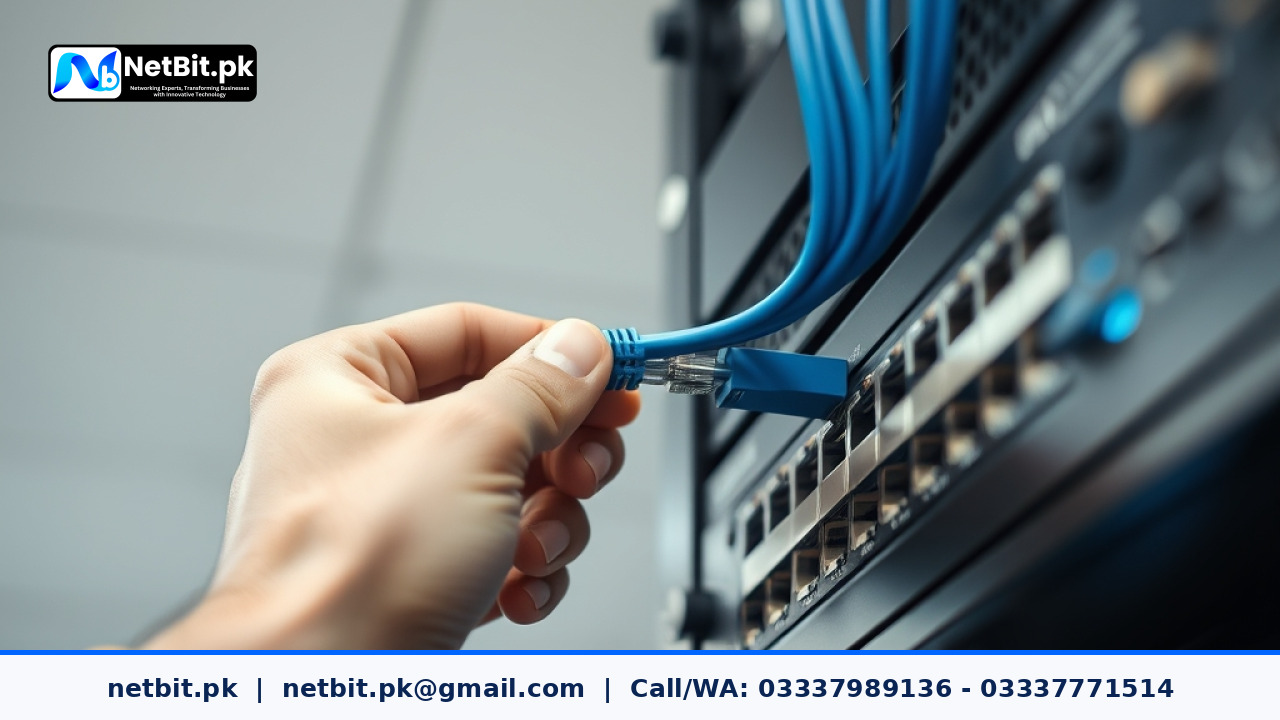
- Check RJ45 Connectors: Inspect the plastic clips on your Cat6 patch cords. If a locking tab is broken, the cable can wiggle loose inside the switch port, causing intermittent connection drops.
- Verify Cable Length and Standards: Ensure that your horizontal runs do not exceed standard Ethernet limits (100 meters) and that your cable termination follows strict TIA/EIA-568 standards.
- Inspect Fiber Patch Cords: If your core switches connect via fiber patch cords, dust or microscopic scratches on the transceiver surface can cause signal attenuation, leading to rapid link drops.
Step 2: Access the Switch CLI and Review Interface Logs
Once you rule out obvious physical damage, you need to examine the switch operating system logs to confirm the flapping pattern. Log into your managed switch via SSH or console cable.
- Open your terminal client and connect to the switch management IP address using your administrator credentials.
- Run the command to view system logs or buffer messages:
show loggingorshow log. - Look for recurring messages such as
%LINK-3-UPDOWN: Interface GigabitEthernet0/1, changed state to downfollowed immediately by anupmessage. - Note the exact interface name and timestamp frequency. If the state toggles every few seconds, you have confirmed a physical or auto-negotiation mismatch.
Step 3: Fix Speed and Duplex Mismatches
Another frequent culprit behind link flapping is an incorrect speed and duplex configuration between the edge device (such as a computer or access point) and the switch port.
By default, most modern hardware relies on auto-negotiation. However, if one end is hard-coded to 100Mbps Full-Duplex while the other attempts auto-negotiation, the link may flap continuously. To resolve this:
- Log into the switch configuration mode:
configure terminal - Navigate to the affected interface:
interface gigabitethernet 0/1 - Explicitly set the speed and duplex or force auto-negotiation matching both ends:
speed autoandduplex auto.
Step 4: Test Transceiver and Port Health
If the cabling is pristine and the duplex settings match, the issue might lie within the hardware port itself or the Small Form-factor Pluggable (SFP) module.
Swap the patch cord to a known working port on the same switch. If the flapping stops, the original port may have damaged internal pins. If you are using modular fiber transceivers, check the digital diagnostics monitoring (DDM) readings using show interfaces transceiver details to ensure optical power levels fall within normal operational thresholds.
Partner with NetBit for Robust IT Infrastructure
Maintaining a resilient local network requires technical precision, quality hardware, and ongoing maintenance. When minor connection issues escalate into major operational hurdles, having a trusted technology partner makes all the difference. NetBit software house & technology operates directly from Khuzdar, providing comprehensive IT support, enterprise networking setup, custom software development, and structured cabling solutions tailored for Pakistani businesses.
Whether you need professional Cat6 cabling, switch configuration, reliable Wi-Fi bridging with LiteBeam and PowerBeam, or complete CCTV surveillance installation, netbit tech delivers scalable solutions designed for maximum uptime. Contact netbit khuzdar today to evaluate your current IT infrastructure and protect your business from unexpected downtime.


Reader comments.
Share your question, suggestion or experience related to this article.
No comments yet
There are no approved comments on this article yet. You can be the first person to leave one.