
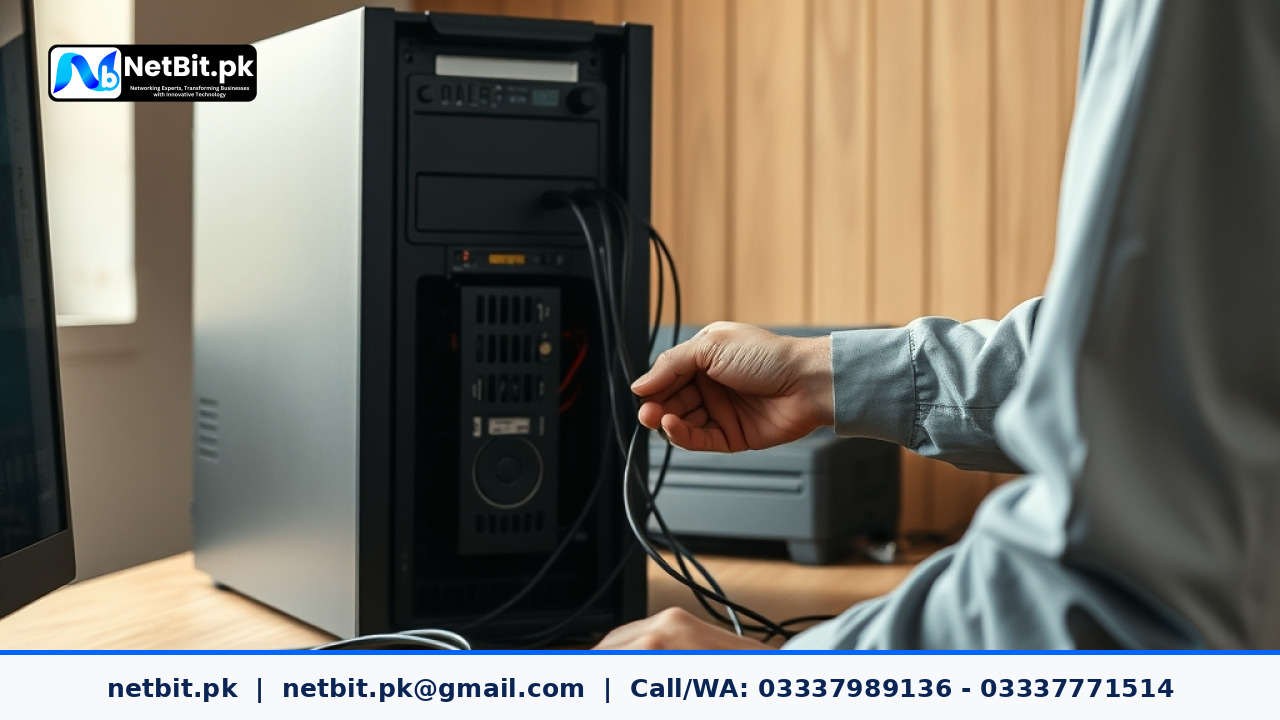
Understanding Startup Programs on Business Computer Systems
Every time you turn on an office computer, various applications launch automatically in the background. While some of these background processes are essential for system security and hardware functionality, many are simply non-essential utilities installed by third-party software. Over time, as more programs are installed, a computer can accumulate dozens of background processes that execute right at bootup. This accumulation severely taxes your computer systems, consuming valuable RAM and processing power before your team even opens their first work document.
For growing businesses in Pakistan, sluggish office computers translate directly to lost working hours and lowered staff efficiency. Whether your organization operates out of bustling tech hubs in major cities or regional offices managed by teams in Khuzdar, maintaining responsive workstations is vital. When multiple computers take ten minutes just to reach the desktop, daily operations stall. Learning how to manage and audit these startup tasks is a fundamental maintenance practice for any business utilizing standard desktop operating systems.
Why Unmanaged Startup Applications Slow Down Your Workflow
When a computer boots up, the operating system must allocate memory and CPU cycles to load every active startup item. If your office workstations run heavy accounting tools, communication platforms, design suites, and cloud-sync utilities all at the exact same moment, the system bottleneck is immediate. Hard drives experience high utilization rates, processors spike to peak capacity, and startup times stretch from seconds into agonizingly long minutes.
Furthermore, many consumer applications default to enabling themselves during updates or installations without asking for explicit user permission. These programs quietly sit in your system tray, consuming background resources even when your staff is not actively using them. Identifying these resource hogs helps stabilize your hardware infrastructure, reduces unexpected system freezes, and extends the operational lifespan of office desktop computers.
Step-by-Step Guide to Managing Startup Programs
Managing startup applications manually on Windows-based computer systems is straightforward if you follow a structured routine. You do not need expensive software utilities to clean up your boot sequence; built-in operating system tools provide all the visibility and control required.
Step 1: Accessing the Task Manager Startup Tab
The quickest way to review what runs upon boot is through the built-in system manager.
- Press
Ctrl + Shift + Escon your keyboard to open the Task Manager directly. - If the window opens in compact mode, click on the More details or expand the left sidebar to view advanced tabs.
- Locate and click on the Startup tab (represented by a speedometer or gauge icon in modern operating system layouts).
Step 2: Evaluating Impact and Status
Once you are inside the Startup tab, you will see a comprehensive list of applications configured to launch alongside your operating system. Pay close attention to the following columns:
- Name: The identifiable title of the application or publisher.
- Publisher: The verified creator of the software (e.g., Microsoft Corporation, Adobe Inc.).
- Startup Impact: A rating (High, Medium, Low, or Not measured) indicating how heavily that specific item affects your computer boot time.
Review each item critically. If you spot a gaming client, a media player helper, or a redundant chat application set to 'High' impact, it is a prime candidate for disabling.
Step 3: Disabling Unnecessary Processes
To prevent an application from running automatically when the computer turns on:
- Click on the target application to highlight the row.
- Right-click anywhere on the selected row, or click the Disable button located in the bottom-right corner of the window.
- The status column for that application will immediately switch from 'Enabled' to 'Disabled'.
Do not worry—disabling a program here does not delete the software from your hard drive. It simply stops the program from launching uninvited in the background when your system boots. Your team can still open the application manually whenever they actually need to use it.
Best Practices for Long-Term System Maintenance
Optimizing startup applications is not a one-time fix; it requires periodic review. As your staff installs new software tools for daily administrative tasks, new background services often sneak back into the boot sequence.
Establish a monthly or quarterly maintenance schedule across your office network. Encourage employees to report unusually slow boot times immediately. Keeping your computer systems lean ensures that your hardware runs cooler, experiences fewer unexpected crashes, and maintains peak performance throughout its lifecycle.
Partner with NetBit for Complete IT Solutions
At NetBit, we understand that reliable technology infrastructure is the backbone of any successful enterprise. Based in Khuzdar and serving clients across Pakistan, NetBit Software House & Technology provides professional technical support and digital services to keep your business running smoothly.
Whether you need custom software development, robust web applications, enterprise mobile apps, secure desktop systems, or comprehensive IT maintenance, our experienced engineering team delivers scalable solutions tailored to your operational needs. We also specialize in advanced networking infrastructure—including structural Cat6 cabling, fiber patch cords, long-range wireless links using LiteBeam and PowerBeam equipment, and professional CCTV surveillance installations.
Stop letting sluggish systems and unstable networks drain your company's potential. Consult with netbit tech today to audit your office IT environment, upgrade your hardware capabilities, and build a secure digital foundation for tomorrow. Reach out to the experts at NetBit Khuzdar to discuss your next project or maintenance contract.


Reader comments.
Share your question, suggestion or experience related to this article.
No comments yet
There are no approved comments on this article yet. You can be the first person to leave one.