
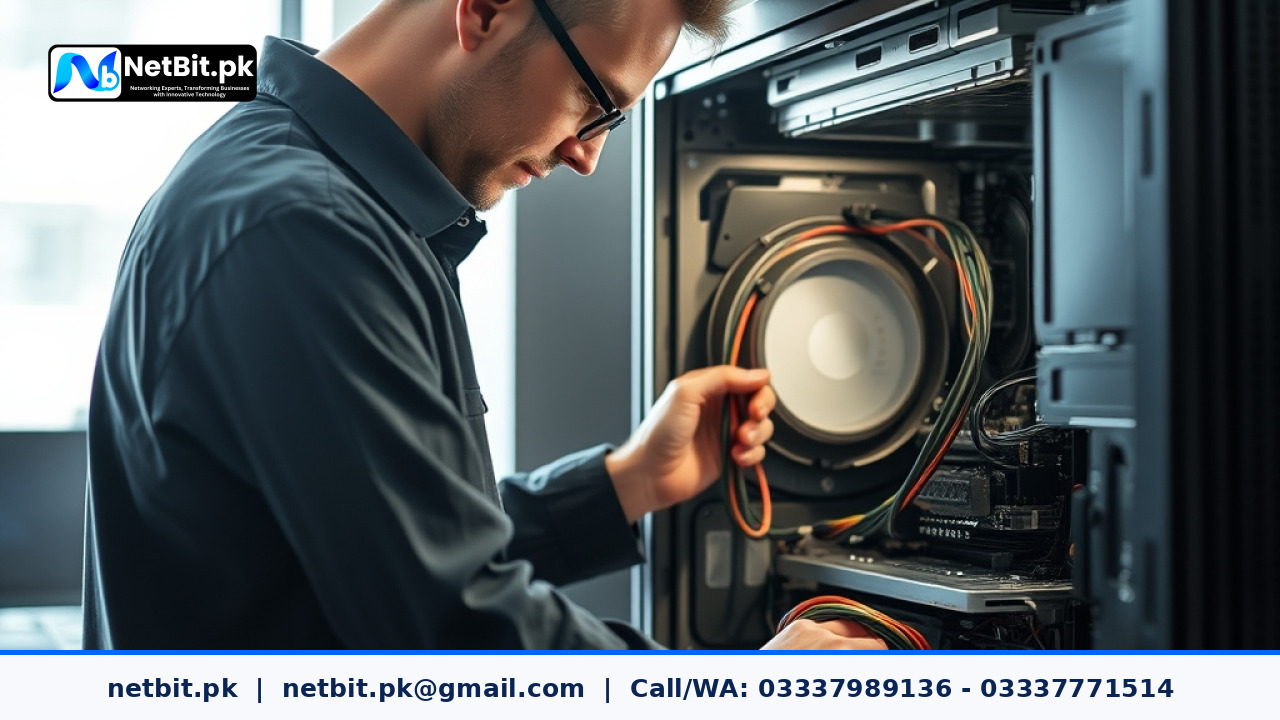
Understanding Disk Health on Office Computer Systems
In any modern office environment across Pakistan, desktop computers and workstations serve as the backbone of daily operations. From accounting files stored on local drives to crucial client records, office computer systems handle massive amounts of data daily. However, hardware components inevitably degrade over time. Storage drives—whether traditional Hard Disk Drives (HDDs) or faster Solid State Drives (SSDs)—have a finite lifespan. Ignoring early warning signs of disk failure can lead to catastrophic data loss, delayed projects, and expensive emergency repairs.
At NetBit, our IT support teams frequently assist businesses in Khuzdar and throughout Pakistan with proactive hardware maintenance. Monitoring disk health is not a one-time task; it requires a structured approach to catch declining storage performance before it disrupts your workflow.
Why Hard Drive Monitoring Matters for Pakistani Businesses
Sudden computer crashes are frustrating, but losing weeks of unbacked-up work can cripple a small or medium-sized enterprise. Mechanical hard drives contain spinning platters and read/write heads that wear down due to dust, heat, and continuous usage. Meanwhile, SSDs experience wear leveling as data is written and erased. By implementing regular disk health monitoring routines, office managers and IT staff can:
- Prevent unexpected system crashes during critical tasks.
- Schedule hardware replacements during off-peak hours rather than facing emergency downtime.
- Protect sensitive business databases and document archives from corruption.
- Extend the operational lifespan of existing computer systems.
Key Indicators of Failing Office Storage Drives
Before a drive completely fails, it usually exhibits distinct symptoms. Recognizing these early signs allows your team to back up files and replace the storage media proactively. Watch out for the following red flags on your office computer systems:
- Unusually Slow Performance: Files taking an excessive time to open, or frequent freezing when launching applications like word processors or spreadsheets.
- Frequent Blue Screens (BSOD): Random operating system crashes pointing to storage read errors.
- Missing Files or Disappearing Folders: Data that vanishes or becomes suddenly unreadable without user intervention.
- Strange Mechanical Noises: Clicking, grinding, or humming sounds coming directly from the desktop tower (specific to traditional HDDs).
- Corrupted Data Blocks: Error messages stating that specific files cannot be read or written.
How to Check Disk Health Using Built-in and Third-Party Tools
Modern operating systems and storage hardware include diagnostic features designed to report internal metrics. The most reliable standard used across the computing industry is S.M.A.R.T. (Self-Monitoring, Analysis, and Reporting Technology).
Follow these practical steps to check the disk health of your office computers:
- Run Check Disk (CHKDSK) via Command Prompt: Open the command line as an administrator on your Windows workstation and type
chkdsk /f /rto scan the drive for file system errors and bad sectors. - Use Command Line S.M.A.R.T. Queries: Windows users can query drive status by opening PowerShell and executing commands such as
Get-PhysicalDiskto review operational health and operational status. - Deploy Dedicated Diagnostic Utilities: For deeper insights, install lightweight, reputable disk utility software that reads detailed S.M.A.R.T. attributes such as temperature, reallocated sector count, and power-on hours.
Best Practices for Maintaining Long-Term Storage Reliability
Monitoring is most effective when paired with preventive maintenance habits. Keep your office computer systems running smoothly by incorporating these routine practices:
- Ensure Proper Ventilation: Excess heat is a primary enemy of electronic components. Keep computer cases clean from dust and ensure adequate airflow in the office workspace.
- Maintain Automated Backups: No matter how healthy a drive appears, hardware can fail due to power surges or physical accidents. Always keep secondary backup copies of vital office files on external drives or secure cloud storage.
- Keep Drivers and Firmware Updated: Manufacturers frequently release firmware updates for SSDs that resolve bugs and optimize performance. Check your hardware vendor's website periodically.
Professional IT Maintenance and Support with NetBit Tech
Managing computer systems, hardware diagnostics, and network configurations requires dedicated time and technical expertise. If your office in Khuzdar or surrounding regions needs reliable assistance, NetBit delivers comprehensive technical solutions tailored to your business needs.
As an established technology partner, netbit tech specializes in custom software development, web and mobile applications, desktop systems maintenance, robust office networking (including Cat6 cabling, fiber patch cords, switches, LiteBeam, and PowerBeam setups), and professional CCTV surveillance installation. Let our skilled engineers handle your hardware maintenance and IT infrastructure so you can focus entirely on growing your business. Contact netbit software house today to discuss a custom maintenance plan for your enterprise.


Reader comments.
Share your question, suggestion or experience related to this article.
No comments yet
There are no approved comments on this article yet. You can be the first person to leave one.