

Understanding NVMe M.2 Installation on Office Servers
Modern business servers rely heavily on fast storage solutions to handle heavy workloads, database queries, and multi-user requests. NVMe M.2 solid-state drives offer incredible read and write speeds compared to traditional SATA hard drives. However, because these components handle vital company information, proper physical installation and thermal management are crucial for long-term reliability.
Whether you are upgrading an existing server rack or setting up a new machine at your office, handling sensitive hardware requires care, attention to detail, and proper grounding. In this guide, we break down the safe, professional way to mount NVMe M.2 drives in standard enterprise server environments.
Step-by-Step Guide to Mounting NVMe M.2 Drives
Before touching any internal server components, always power down the system, disconnect the main power cables, and discharge any static electricity. Follow these practical steps for a secure installation:
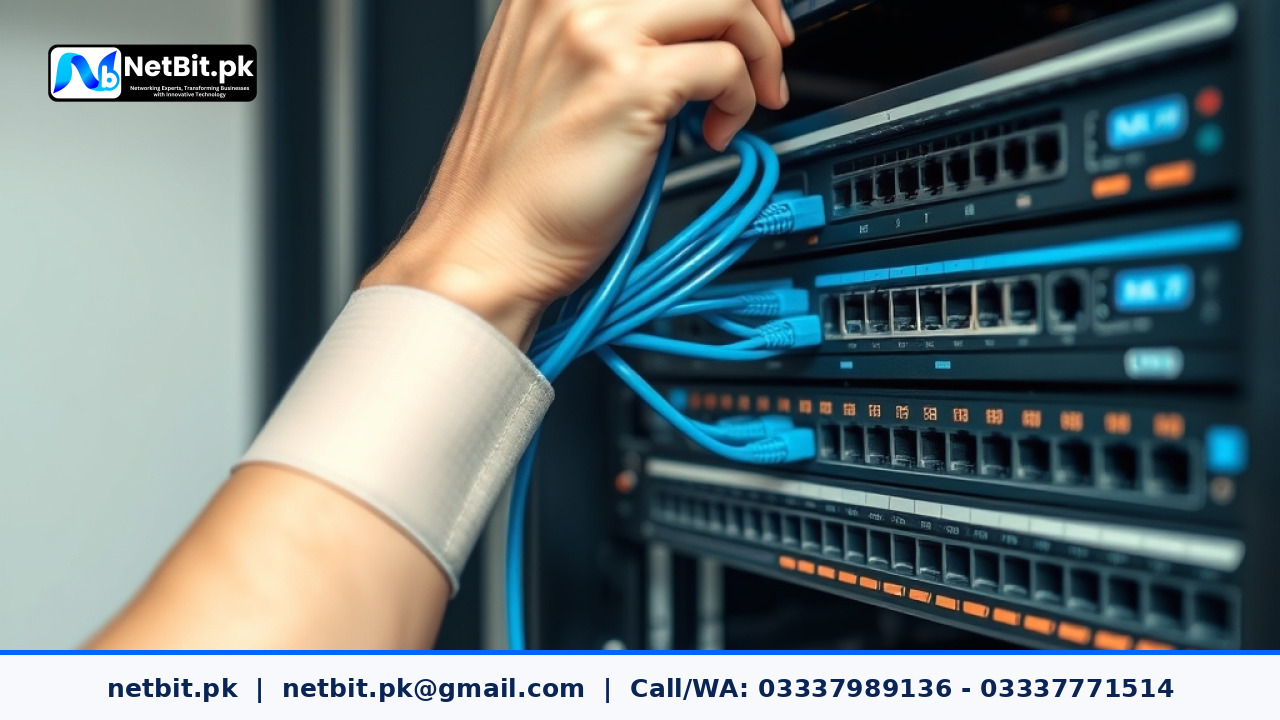
- Prepare the Workspace: Ensure a clean, dry, and well-lit workspace. Keep an anti-static wrist strap handy to protect sensitive circuit boards from electrostatic discharge.
- Locate the M.2 Slot: Open the server chassis and locate the designated M.2 slots on the motherboard. Some enterprise motherboards require removing air shrouds or expansion cards for easy access.
- Check Thermal Pads: Most servers include built-in heatsinks for M.2 drives. Ensure the protective plastic film is peeled off the thermal pad so it can properly transfer heat away from the drive controller.
- Insert the Drive at an Angle: Gently slide the gold-pin end of the NVMe drive into the M.2 slot at a shallow 30-degree angle. Never force the drive flat before it is fully seated in the slot.
- Secure the Drive: Push the drive down flat against the motherboard standoff. Secure it using the manufacturer-provided screw or toolless latch mechanism, avoiding over-tightening.
- Reattach the Heatsink: Place the server heatsink back over the drive and secure it firmly to ensure efficient heat dissipation during intensive data operations.
Frequently Asked Questions
Why is thermal management important for NVMe drives?
NVMe drives generate significant heat during sustained data transfers. Without proper heatsinks and thermal pads, the drive will thermal throttle, reducing its speed and potentially shortening its operational lifespan.
Do I need special drivers to use NVMe drives on office servers?
Most modern operating systems, including Windows Server and mainstream Linux distributions, include native NVMe drivers. However, always check your motherboard manufacturer's website for firmware updates to ensure maximum compatibility.
Partner with NetBit for Professional Server Solutions
Managing server hardware, networking gear, and enterprise software requires specialized knowledge and hands-on technical expertise. At netbit, our experienced team provides reliable IT support, custom software development, robust networking infrastructure, and secure server deployments tailored to growing businesses in Pakistan.
Whether you need assistance upgrading your office storage hardware, configuring secure networks, or maintaining your daily IT systems, netbit tech delivers efficient, professional solutions. Contact netbit khuzdar today to discuss how our software house can empower your business with dependable technology infrastructure.


Reader comments.
Share your question, suggestion or experience related to this article.
No comments yet
There are no approved comments on this article yet. You can be the first person to leave one.