
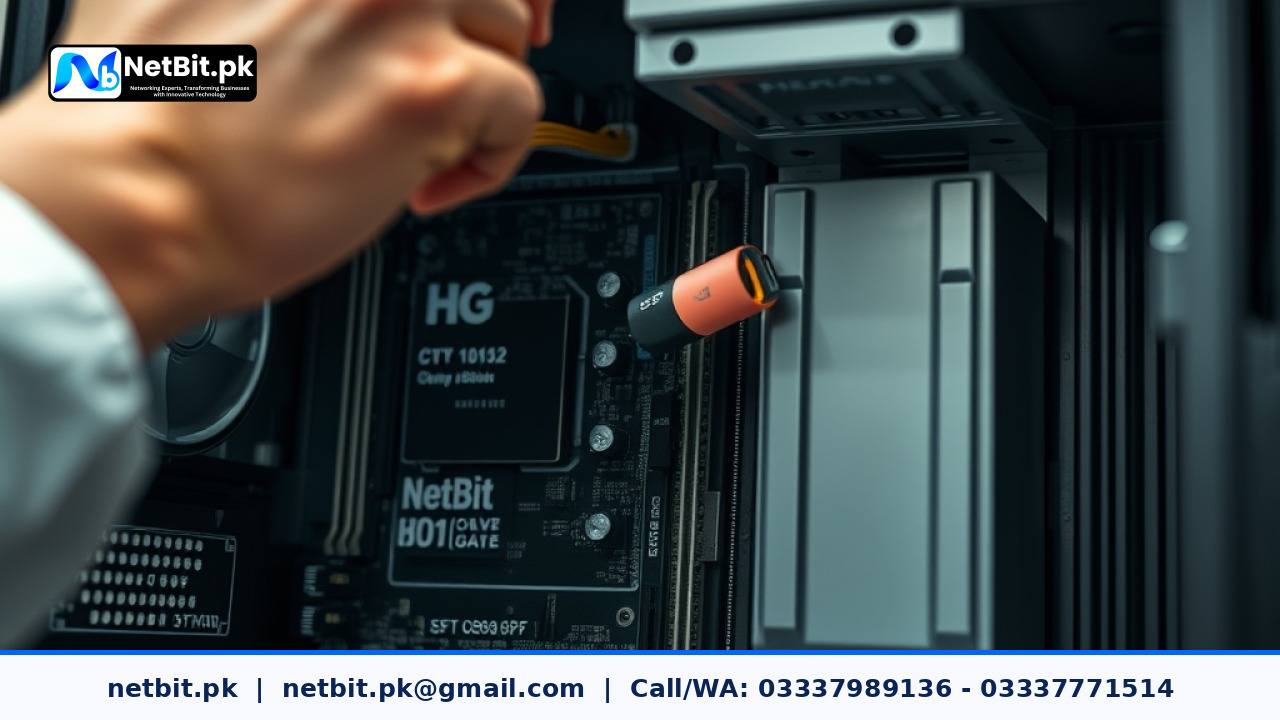
Understanding Computer System Firmware Updates
In every modern workstation, the Motherboard Firmware—commonly known as the BIOS (Basic Input/Output System) or UEFI (Unified Extensible Firmware Interface)—acts as the foundational bridge between operating software and physical hardware. While regular operating system patches receive instant attention, core firmware updates for computer systems are frequently overlooked by Pakistani businesses and IT managers.
Ignoring system firmware updates exposes office workstations to unpatched security vulnerabilities, system instability, and hardware incompatibility issues. Keeping motherboard firmware updated ensures that multi-core processors, high-speed RAM, graphics hardware, and NVMe storage devices operate smoothly without unexpected system crashes.
Why Motherboard BIOS Updates Matter for Workstations in Pakistan
Updating the firmware on desktop computer systems provides immediate functional and security improvements across your office infrastructure. Here is why maintaining up-to-date system firmware is essential:
- Enhanced Hardware Compatibility: Newer motherboard BIOS versions add support for updated processor stepping, improved memory profiles (such as XMP or EXPO), and newer storage devices.
- Critical Security Patches: Computer systems frequently face microcode-level security vulnerabilities, such as CPU side-channel attacks, bootkit exploits, and secure boot bypass risks. Firmware updates deliver microcode patches that safeguard physical equipment against low-level cyber threats.
- Improved System Stability: Operating system crashes, random restarts, and blue screens (BSOD) often stem from early firmware bugs. Applying updated BIOS code resolves hidden power-state glitches and PCIe lane allocation issues.
- Windows 11 Readiness: Modern operating systems require functional TPM 2.0 (Trusted Platform Module) support and enabled Secure Boot options within the UEFI interface. Upgrading older firmware versions unlocks seamless compliance for corporate desktop deployments.
Step-by-Step Guide: Safely Updating Computer System Firmware
Flashing a motherboard BIOS requires careful attention to detail. A disrupted update process can corrupt motherboard memory chips, rendering the computer unbootable. Follow these practical steps to safely execute firmware updates across desktop computer systems in your organization.
Step 1: Identify Your Motherboard Model and Current BIOS Revision
Before downloading firmware, identify the exact motherboard manufacturer, model name, and current revision string installed on the target workstation.
On Windows workstations, open the command prompt or system info tool by pressing Win + R, typing msinfo32, and pressing Enter. Note the fields labeled BaseBoard Product and BIOS Version/Date.
Alternatively, executing wmic baseboard get product,Manufacturer,version in the command console reveals the required hardware specifications.
Step 2: Secure a Reliable Power Source (UPS Integration)
In Pakistan, sudden power interruptions and unexpected load shedding represent the highest risk when flashing computer system firmware. Interrupting a BIOS flash mid-process leaves the motherboard chip partially written, which prevents the computer system from initializing.
Always connect the desktop workstation to a functional Uninterruptible Power Supply (UPS) with sufficient battery charge before initiating any system firmware process. Never attempt to update BIOS during periods of erratic power supply or local grid instability.
Step 3: Download Genuine Firmware from Official Channels
Navigate directly to the official support portal of your motherboard manufacturer (e.g., ASUS, Gigabyte, MSI, ASRock, Dell, or HP). Search using the exact model number identified in Step 1.
- Select the precise hardware revision (e.g., Rev 1.0 vs. Rev 2.0).
- Download the latest stable firmware release. Avoid experimental or beta firmware builds for business-critical desktop computer systems.
- Extract the downloaded archive file to reveal the firmware update payload file (typically ending in extensions like
.CAP,.F30, or.ROM).
Step 4: Prepare a Clean USB Flash Drive
Format a dedicated USB flash drive using the FAT32 file system. Copy the unzipped motherboard firmware file directly onto the root folder of the drive. Do not place the file inside nested sub-folders, as UEFI flashing tools might fail to locate the file automatically.
Step 5: Initiate the Flash Process via UEFI Setup Utility
Restart the computer system and tap the setup hotkey (usually Delete or F2) during post-screen initialization to enter the UEFI BIOS interface.
- Locate the built-in flash tool inside the firmware menu (such as EZ Flash, Q-Flash, or M-Flash).
- Select the formatted USB drive containing the downloaded update file.
- Confirm the selected file matching your motherboard model.
- Initiate the update sequence and allow the system to complete the bar progress. Do not turn off power, disconnect cables, or touch the keyboard until the machine restarts automatically.
Step 6: Reconfigure Custom Settings and TPM Modules
Once the firmware flash completes, the computer system will automatically reboot. Because BIOS updates reset customized settings back to default parameters, re-enter the UEFI utility to restore essential configurations:
- Enable AHCI/NVMe Storage Mode if configured previously.
- Re-enable fTPM / Discrete TPM 2.0 and Secure Boot for software security compliance.
- Enable correct RAM performance settings (XMP/EXPO) to ensure full memory speed optimization.
Preventing Firmware Errors and Recovery Solutions
Should an error occur during a computer system update, immediate panic is unnecessary. Modern commercial motherboards incorporate built-in protection features to recover damaged system firmware:
- BIOS Flashback / Q-Flash Plus: Dedicated USB ports allow flashing firmware even if the system fails to boot or has no CPU installed. Place the renamed BIOS file on a FAT32 drive and press the rear motherboard button.
- Dual BIOS Systems: Premium motherboards feature a secondary backup chip. If the primary BIOS fails, the board automatically restores working code from the secondary chip.
- CMOS Reset: Clearing the CMOS memory by removing the motherboard coin cell battery for 5 minutes resets misconfigured voltage or memory settings following a firmware update.
Frequently Asked Questions About Computer System Firmware
How often should businesses update computer system BIOS?
Routine updates are recommended every 6 to 12 months, or whenever critical security alerts (such as CPU vulnerabilities) are published by manufacturers. Routine updates are also necessary when adding new CPUs or hardware components.
Will updating BIOS delete files on hard drives or SSDs?
No. Updating system firmware modifies the memory chip located directly on the motherboard. Your operating system, personal files, and installed desktop software on storage drives remain completely untouched.
What is the difference between legacy BIOS and modern UEFI?
Legacy BIOS relies on older 16-bit processing modes limited to 2TB drive partitions. Modern UEFI operates in 32-bit or 64-bit modes, supporting graphical interfaces, faster boot times, mouse input, drive partitions larger than 2TB, and hardware-level Secure Boot capabilities.
Optimize Your Computer Systems and Workstation Networks with NetBit
Managing ongoing hardware updates, thermal maintenance, operating system deployments, and computer system security across dozens of office workstations requires skilled technical expertise. NetBit Software House & Technology provides specialized IT management, custom computer system setups, structured network cabling, and business desktop support for enterprises in Khuzdar and across Pakistan.
Whether your business needs comprehensive workstation deployment, custom internal application development, corporate network architecture, or routine desktop system maintenance, NetBit Tech delivers reliable, budget-friendly IT solutions tailored to your operational needs. Contact NetBit Khuzdar today to schedule a complete technical evaluation of your office computer hardware and corporate network infrastructure.



Reader comments.
Share your question, suggestion or experience related to this article.
No comments yet
There are no approved comments on this article yet. You can be the first person to leave one.