
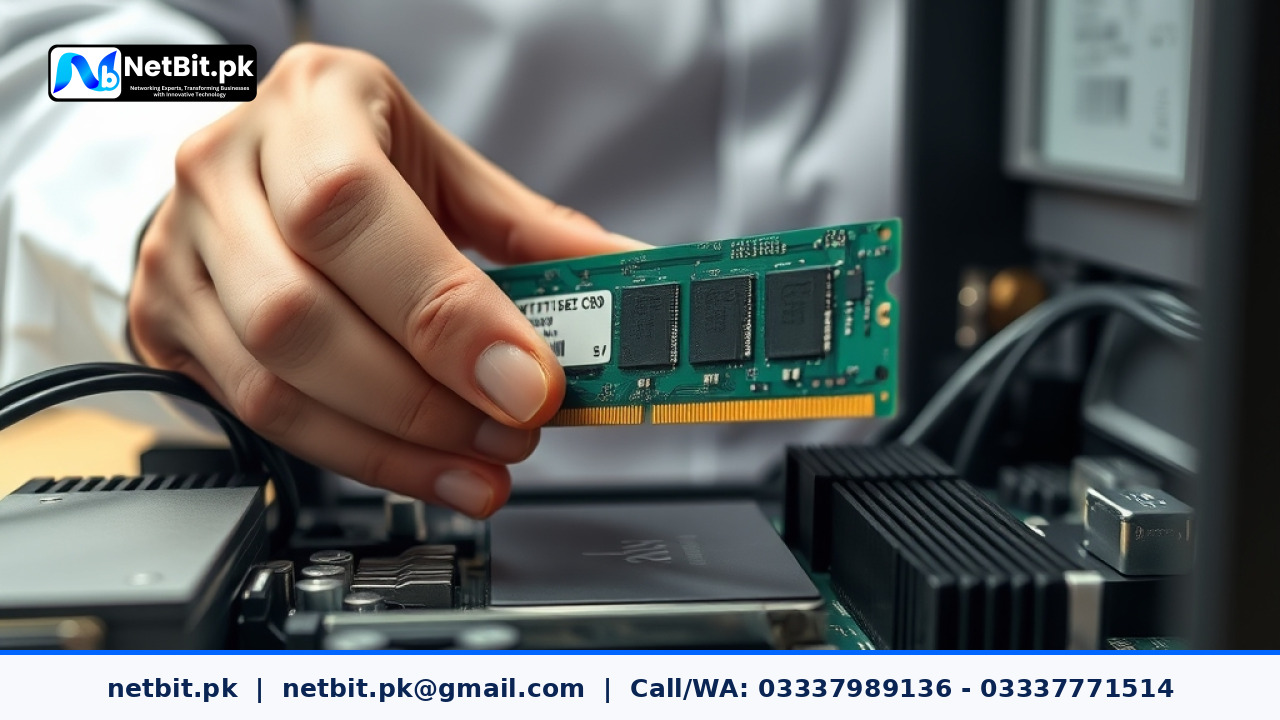
Understanding RAM and System Stability in Office Workstations
Random Access Memory (RAM) is one of the most critical components in any office computer system. It holds the temporary data that your operating system, web applications, and custom software use actively. When RAM modules gather dust or experience poor terminal contact due to environmental dust common in offices across regions like Khuzdar, users often notice sudden application crashes, freezing screens, or the dreaded Blue Screen of Death (BSOD).
Routine hardware maintenance is vital for extending the lifespan of your office IT infrastructure. Dust accumulation inside computer chassis can act as an insulator, trapping heat and causing micro-vibrations or thermal expansion that loosens RAM sticks from their DIMM slots. Knowing how to properly inspect, clean, and test these modules ensures your team experiences minimal downtime.
Step-by-Step Guide to Cleaning and Reseating RAM Modules
Before performing any hardware intervention on office workstations, safety and proper preparation are essential. Follow this structured procedure to avoid electrostatic discharge (ESD) damage and ensure component safety:
- Power Down and Unplug: Shut down the computer system completely through the operating system, turn off the power supply switch at the back, and unplug the power cable from the wall outlet.
- Discharge Residual Power: Press and hold the computer's physical power button for about 10 seconds to drain any remaining electrical charge stored in the motherboard capacitors.
- Open the Chassis: Remove the side panel of the computer case by unscrewing the thumbscrews. Place the case on a clean, flat, non-conductive surface.
- Ground Yourself: Touch an unpainted metal surface inside the computer chassis or wear an anti-static wrist strap to prevent static electricity from frying sensitive integrated circuits.
- Release the Latches: Locate the RAM slots on the motherboard. Push down gently on the plastic retention clips at both ends of the target RAM stick until they click outward.
- Extract the Module: Hold the RAM stick by its outer edges without touching the golden contact pins or surface chips, and pull it straight up out of the slot.
- Clean the Contacts: Inspect the golden pins for oxidation or dust. Use a clean, dry microfiber cloth or an optical-grade compressed air can to clear dust from the DIMM slot. If necessary, gently wipe the golden contacts with a clean pencil eraser, then wipe away any eraser shavings with a dry cloth.
- Reseat the Module: Align the notch on the RAM stick with the key inside the DIMM slot. Press down firmly and evenly on both ends until the plastic retention clips snap back into place automatically.
Testing RAM Stability After Maintenance
Once your computer systems are reassembled and powered back on, you must verify that the memory modules are functioning correctly without errors. Running diagnostic tools helps catch faulty hardware before it corrupts active databases or business documents.
- Built-In Windows Diagnostic: Press the Windows key, type
Windows Memory Diagnostic, and select restart now and check for problems. Let the tool complete its standard scan pass. - Advanced Stress Testing: For deeper analysis on heavy-duty business workstations, use open-source utilities like MemTest86 written to a bootable USB drive to run multi-pass verification overnight.
- Monitor System Logs: Check the Windows Event Viewer under Windows Logs > System for any
WHEA-Loggeror memory parity errors during daily office tasks.
Professional IT Maintenance Support with NetBit Tech
Maintaining stable computer systems requires consistent attention to detail, proper tools, and technical expertise. While routine cleaning can be handled internally, hardware failures, complex networking setups, and custom software deployments require professional oversight to keep your business running smoothly without unexpected operational interruptions.
At NetBit Software House & Technology (netbit.pk), based in Khuzdar, Pakistan, we provide comprehensive IT maintenance and infrastructure solutions. Whether you need reliable desktop system repairs, structured Cat6 and fiber networking, secure CCTV surveillance installation, or custom software development, our expert team ensures your technology operates at peak efficiency.
Partner with NetBit Tech for Complete IT Infrastructure Solutions
Is your business experiencing sluggish computer systems, recurring network bottlenecks, or downtime that hurts your daily productivity? Don't let hardware and software issues slow your growth. Partner with NetBit Tech today for professional IT maintenance, robust networking, and custom software solutions tailored to your operational needs.
Our experienced technicians in Khuzdar are ready to audit, upgrade, and maintain your business technology stack. Contact NetBit Software House & Technology today to schedule a consultation and secure a reliable technical foundation for your business.



Reader comments.
Share your question, suggestion or experience related to this article.
No comments yet
There are no approved comments on this article yet. You can be the first person to leave one.