
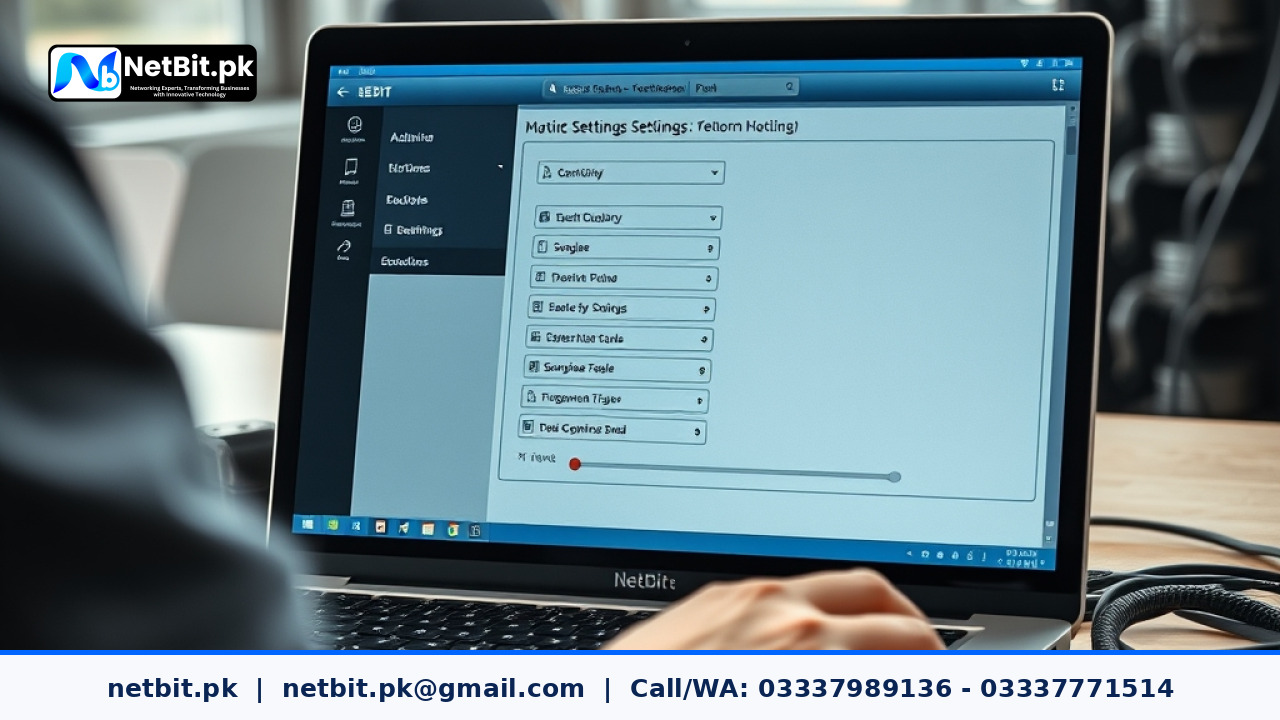
Understanding Event Logs on Business Workstations
For ordinary Pakistani businesses, students, and office managers, maintaining computer systems goes beyond dusting off keyboards. Every Windows-based desktop or laptop running in an office environment continuously records system events, warnings, and errors in hidden databases known as event logs. Over time, these files grow larger, accumulating months or even years of historical data that your IT support team may no longer need.
Clearing out obsolete event logs helps free up minor disk storage, speeds up diagnostic scanning when searching for active errors, and ensures that recent system problems are easy to spot. Whether you run a small office in Khuzdar or manage a growing enterprise across Pakistan, establishing a routine maintenance checklist is vital. Below is a step-by-step guide on how to properly clear event logs on your business workstations without risking data loss.
Step-by-Step Guide to Clearing Event Logs
Before initiating any maintenance procedure on office computers, ensure you have administrative privileges and that all important project files are safely saved. Follow these practical steps to safely clean your event logs using built-in Windows utilities.
1. Access the Event Viewer Utility
To begin, press the Windows Key on your keyboard, type Event Viewer, and press Enter. This native Windows management tool organizes system activities into specific categories such as Application, Security, and System logs. Familiarizing yourself with this interface is a core competency taught by the technical team at netbit.
2. Review Logs Before Clearing
Never delete logs blindly. Expand the Windows Logs dropdown menu in the left-hand pane and click on System or Application. Skim through recent warnings or critical errors. If your workstation has experienced sudden crashes or software conflicts recently, note those timestamps down or export the current log archive to a backup folder before proceeding with a wipe.
3. Clear Selected Log Categories
Once you are certain the historical data is no longer required for active troubleshooting:
- Right-click on the specific log category (for example, Application or Setup) in the left panel.
- Select the option labeled Clear Log... from the context menu.
- A prompt will appear asking if you want to save the log before clearing it. Choose Save and Clear if you require an archive for compliance, or simply click Clear to purge the history immediately.
Repeat this process for other non-critical logs. Note that the Security log often requires strict administrative auditing compliance, so check local office policies before clearing security-related entries.
Best Practices for Routine IT Maintenance
Routine log management is just one part of keeping office infrastructure healthy. To keep your hardware and custom software running smoothly, integrate these habits into your weekly routine:
- Schedule Regular Reviews: Set a calendar reminder at the end of each month to inspect error logs rather than waiting for a full system freeze.
- Combine with Disk Cleanups: Pair your log clearing sessions with temporary file deletions to reclaim valuable SSD storage space.
- Partner with Professionals: For complex networks involving multiple workstations, managed switches, and CCTV surveillance, manual upkeep can become overwhelming. Professional oversight ensures nothing gets missed.
Professional IT Maintenance & Support with NetBit Tech
Managing day-to-day IT operations, network cabling, and software deployment can distract your team from core business goals. At netbit khuzdar, our expert technicians deliver reliable, end-to-end technology solutions tailored to organizations across Pakistan. Whether you need comprehensive IT maintenance, robust networking setup using Cat6 cabling and LiteBeam bridges, custom software applications, or secure CCTV installations, netbit software house has the expertise to keep your operations running without interruption. Contact netbit tech today to discuss customized support packages designed specifically for your business infrastructure.



Reader comments.
Share your question, suggestion or experience related to this article.
No comments yet
There are no approved comments on this article yet. You can be the first person to leave one.