
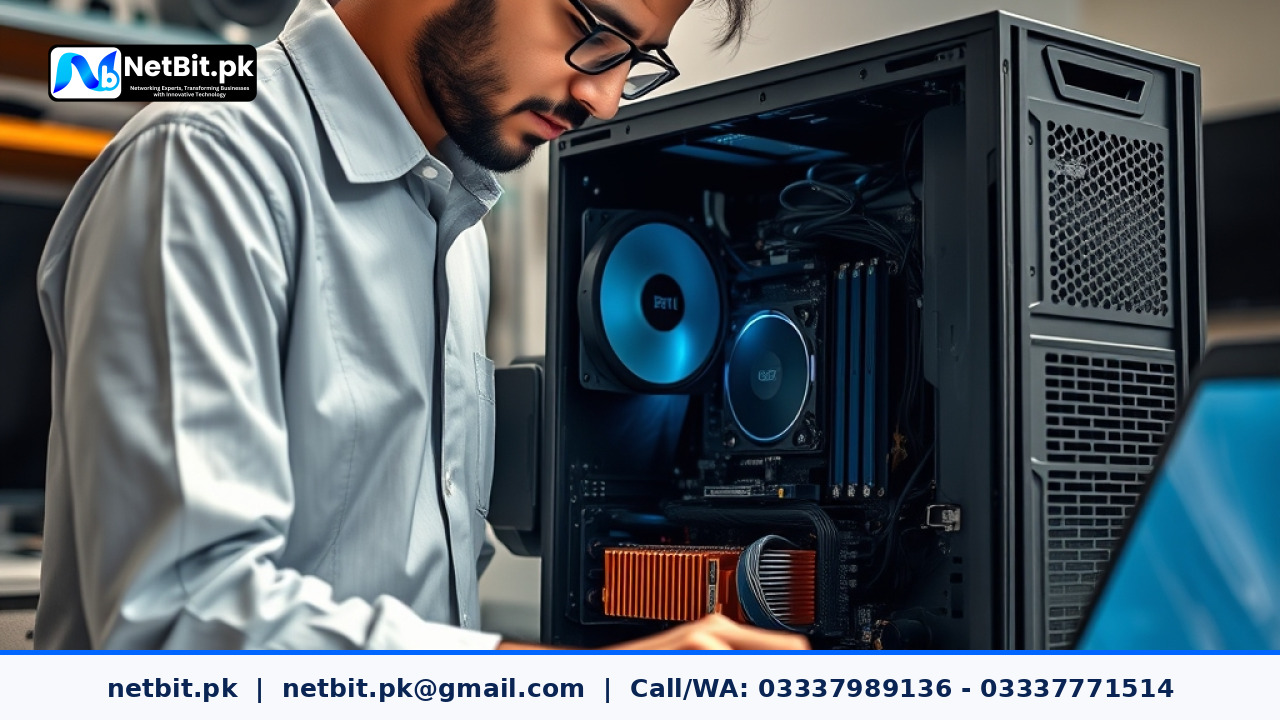
Understanding Hardware Bottlenecks in Office Computer Systems
In modern office environments across Pakistan, slow desktop computers cause severe productivity losses. When an employee experiences frozen screens, delayed software startup, or slow file transfers, the root cause is frequently a hardware bottleneck. A bottleneck occurs when one specific component in a computer system operates at maximum capacity, forcing faster components to wait for it to complete processing tasks.
For business owners and system administrators, accurately pinpointing which hardware component is causing a slowdown prevents unnecessary expenses. Instead of replacing entire office workstations, diagnosing the specific limitation allows you to upgrade or reconfigure only the affected component—saving budget while restoring optimal performance.
The Four Core Components Subject to Bottlenecks
Every computer system relies on a balanced ecosystem of hardware components. When one component underperforms relative to the others, system performance drops significantly. The primary hardware elements to evaluate include:
- Central Processing Unit (CPU): Executes software instructions and calculations. High CPU usage causes sluggish user interfaces and system freezes.
- Random Access Memory (RAM): Holds temporary data for active applications. Insufficient RAM forces the computer to use slow hard drive space as virtual memory.
- Storage Drives (HDD vs SSD): Reads and writes files. Traditional mechanical Hard Disk Drives (HDDs) frequently bottleneck modern operating systems due to low access speeds compared to Solid State Drives (SSDs).
- Graphics Processing Unit (GPU): Handles visual rendering. While less critical for standard administrative work, inadequate graphics processing hampers video editing, CAD design, and graphic design tasks.
Step 1: Identifying CPU Bottlenecks
A CPU bottleneck occurs when software demands more calculation cycles than the processor can deliver per second. To diagnose CPU performance issues on Windows office computer systems, follow these practical steps:
- Press
Ctrl + Shift + Escto launch the Task Manager, then click on the Performance tab. - Select CPU to view real-time utilization graphs.
- Observe the CPU usage percentage while running standard daily applications. If CPU usage remains consistently above 90% for prolonged periods, the processor is struggling to handle the workload.
- Right-click the graph and select Change graph to > Logical processors. If a single core is maxed out at 100% while others remain idle, the software application is limited to single-thread performance.
If high CPU usage is caused by background system services rather than primary software, running clean boot configurations or terminating unauthorized background processes often restores balance.
Step 2: Detecting Memory (RAM) Saturation
Memory bottlenecks are among the most common issues found in Pakistani office workstations, particularly as modern web browsers and business applications consume increasing amounts of system memory.
When available physical RAM is depleted, the operating system initiates memory paging, writing inactive data blocks to the storage drive. Because storage is significantly slower than RAM, the entire computer system experiences severe lag.
To check for memory saturation:
- Open Task Manager and click on the Memory tab.
- Examine the total memory percentage used. If usage consistently exceeds 80% under standard working conditions, your system requires additional RAM modules.
- Check the Paged Pool and Committed Memory values. High values relative to physical capacity indicate that your hard drive is constantly compensating for low memory space.
Step 3: Evaluating Storage Drive Response Time
Legacy mechanical hard drives (HDDs) are the single largest bottleneck in legacy office computer systems. Modern operating systems perform continuous background index updates, system logging, and updates that exceed the read/write capability of older disk drives.
To evaluate storage performance:
- Navigate to the Disk section inside Task Manager.
- Observe the Active Time percentage and Average Response Time.
- If the Active Time reads 100% continuously, even when no heavy file transfers are taking place, the disk drive is bottlenecking the system.
- An average response time exceeding 20 milliseconds (ms) indicates severe disk latency. Modern SSDs typically maintain response times under 2 milliseconds.
Upgrading legacy boot drives from traditional mechanical disks to modern SATA or NVMe Solid State Drives immediately resolves disk bottlenecks and revitalizes aging office computer systems.
Step 4: Monitoring System Temperatures and Thermal Throttling
In warmer climate regions like Khuzdar and wider Balochistan, elevated ambient temperatures and accumulated dust inside desktop cases can cause thermal throttling. Thermal throttling is a protective mechanism where the CPU or GPU automatically lowers its operating frequency to prevent permanent heat damage.
A thermally throttled processor behaves like a bottlenecked component even if its hardware specifications are capable. To diagnose thermal issues:
- Inspect the computer system chassis for dust buildup along fan grilles and interior heatsinks.
- Ensure internal power supply cables and wiring do not obstruct airflow paths across the motherboard.
- Use system diagnostic software to monitor real-time core temperatures. Processors running continuously above 85°C will reduce clock speeds automatically.
Frequently Asked Questions
How do I know whether I need to upgrade RAM or buy a new CPU?
Check your Task Manager performance graphs during daily work tasks. If memory usage reaches 85% to 100% while CPU usage stays lower, adding more RAM modules will resolve the bottleneck. If CPU usage remains maxed out at 100% while RAM usage remains low, processor limitation or background process overload is the cause.
Will replacing a mechanical hard drive with an SSD fix system freezing?
Yes. In modern computer systems, upgrading the primary operating system drive from an HDD to an SSD provides the single most noticeable speed improvement, dropping boot times and eliminating 100% disk usage freezes.
Can thermal paste breakdown cause hardware bottlenecks?
Indirectly, yes. Dried or degraded thermal compound prevents heat from transferring efficiently from the CPU to its cooling heatsink, causing thermal throttling and reduced operational speed.
Optimize Your Business Computer Systems with NetBit Tech
Maintaining efficient, reliably performing office computer systems is critical for business continuity and operational success. At NetBit Software House, we specialize in comprehensive IT maintenance, desktop system optimization, and complete network infrastructure setup for businesses, institutions, and offices across Pakistan.
Whether your organization needs structured IT maintenance, custom software development, web applications, network cabling, or CCTV security integration, the experts at NetBit Khuzdar deliver professional, cost-effective solutions tailored to your operational requirements. Contact NetBit Tech today to consult with our technical specialists and optimize your office IT environment.



Reader comments.
Share your question, suggestion or experience related to this article.
No comments yet
There are no approved comments on this article yet. You can be the first person to leave one.