
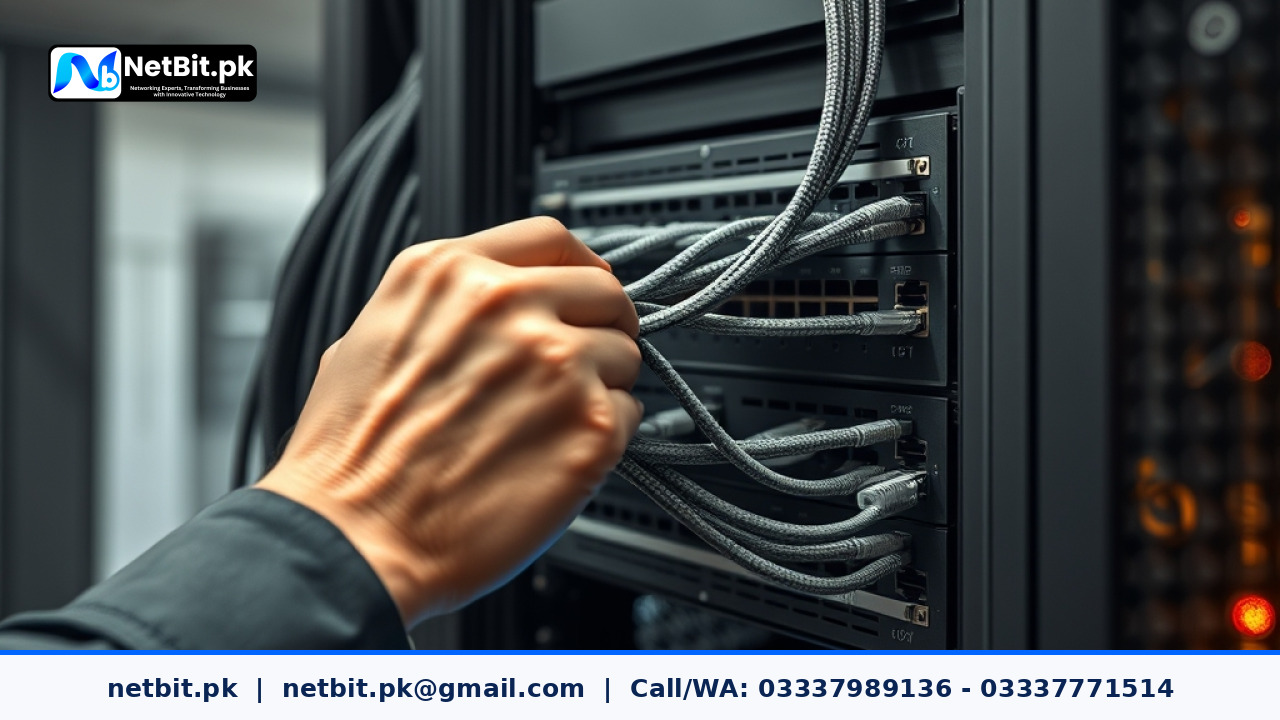
Understanding Link Aggregation on Office Network Switches
In a growing business environment, network traffic can quickly overwhelm a single Ethernet link between core network switches or between a switch and a high-demand server. When multiple workstations simultaneously access heavy files, databases, or enterprise software, standard connections can become bottlenecks. To solve this problem without upgrading expensive hardware, network engineers use Link Aggregation Groups (LAG). By bundling multiple physical cables and ports into a single logical pipe, organizations can multiply their bandwidth and ensure seamless operations across their computer systems.
For businesses in Pakistan experiencing sluggish data transfers or dropped connections during peak hours, optimizing switch configurations is a vital step. At netbit, our networking experts frequently implement structured cabling and advanced switch configurations to keep commercial environments running smoothly. In this guide, we will walk through the practical steps required to set up Link Aggregation Groups effectively on managed office network switches.
Prerequisites for Setting Up a Link Aggregation Group
Before jumping into the command-line interface or web GUI of your managed switch, you must ensure your hardware and physical setup meet the necessary criteria:
- Managed Switches: Link Aggregation requires switches that support IEEE 802.3ad or LACP (Link Aggregation Control Protocol). Unmanaged switches will not work.
- Matching Ports: The ports you intend to bundle must have the same speed (e.g., all 1Gbps ports) and duplex settings.
- Quality Cabling: Ensure your physical links use properly terminated Cat6 cables or fiber patch cords to prevent physical layer interference from disrupting the aggregated link.
- Switch-to-Switch or Switch-to-Server: Identify whether your LAG will connect two core switches together or bond a switch to a high-capacity server hosting your web applications or desktop systems.
Step-by-Step Guide to Configuring LACP on Office Switches
Most enterprise and commercial-grade switches support LACP, which dynamically negotiates and maintains the bundled links. Follow these structured steps to configure a basic static or dynamic aggregation group:
- Access the Switch Management Interface: Log into your switch using a secure terminal connection (SSH) or through the manufacturer's web-based management portal.
- Identify and Verify Member Ports: Select the physical ports you want to combine (for example, ports
Gi 0/1andGi 0/2). Ensure they are currently unassigned to any specific VLAN access modes that conflict with trunking requirements. - Create the Port Channel / LAG Interface: Define a new channel group identifier. For instance, create Port-Channel 1 on Cisco-style CLI environments using the command
interface port-channel 1. - Assign Physical Ports to the Group: Bind the physical ports to the newly created channel group. Set the mode to
activeif you are using standard LACP, which allows the switches to actively negotiate the connection parameters. - Configure Trunk or Access Properties: Apply your required VLAN tags, trunk permissions, and security rules directly to the Port-Channel interface rather than individual physical ports. This ensures uniform traffic handling across all bundled cables.
- Verify the Aggregated State: Run diagnostic commands such as
show etherchannel summaryor check the system status dashboard to confirm that all member ports are bundled correctly and actively passing traffic.
Best Practices for Maintaining Reliable Office Networks
Configuring Link Aggregation is only part of maintaining a robust network infrastructure. To avoid downtime and keep your office connected:
- Label Your Cables: Clearly mark bundled Cat6 cables at both ends so maintenance staff never accidentally disconnect a single link of an active LAG bundle.
- Monitor Port Errors: Regularly review switch logs for interface CRC errors or dropped packets, which indicate failing cables or loose RJ45 connectors.
- Document Your Topology: Maintain an updated map of your network switches, router configurations, and server connections to streamline troubleshooting when expanding your office IT infrastructure.
Professional Networking and IT Infrastructure Solutions by NetBit Tech
Building a high-speed, reliable office network requires precision, the right hardware components, and professional configuration. From structured Cat6 cabling and fiber patch cords to configuring enterprise switches, LiteBeam bridges, and PowerBeam setups, getting your foundational infrastructure right is essential for daily business productivity.
If your Pakistani enterprise or growing business needs expert assistance with network optimization, custom software development, CCTV surveillance systems, or routine IT maintenance, netbit software house is here to help. Our experienced team in Khuzdar delivers dependable technology solutions tailored to your operational needs. Contact netbit tech today to discuss your next networking or software project and take your business connectivity to the next level.


Reader comments.
Share your question, suggestion or experience related to this article.
No comments yet
There are no approved comments on this article yet. You can be the first person to leave one.