

Understanding Hot-Swap Drive Bays in Business Servers
Managing server hardware effectively is a fundamental requirement for growing businesses in Pakistan. When dealing with high-capacity storage demands, downtime is costly. Hot-swap drive bays allow system administrators to replace or add hard drives without powering down the entire machine. This capability ensures continuous uptime for critical operations, web applications, and database systems. At netbit, our technical teams frequently help local enterprises set up robust server hardware that minimizes operational risk.
However, physical installation requires precision. Misalignment can damage delicate backplane connectors, leading to costly hardware failures. This tutorial walks you through the safe, methodical steps required to properly mount and integrate hot-swap drive bays into your business server enclosure.
Step-by-Step Guide to Mounting Hot-Swap Bays
Before beginning any physical hardware modification, ensure the server is powered off completely, disconnected from the power source, and grounded using an anti-static wrist strap. Protect your data and hardware components by following these structured steps:
1. Inspect the Enclosure and Backplane Interface
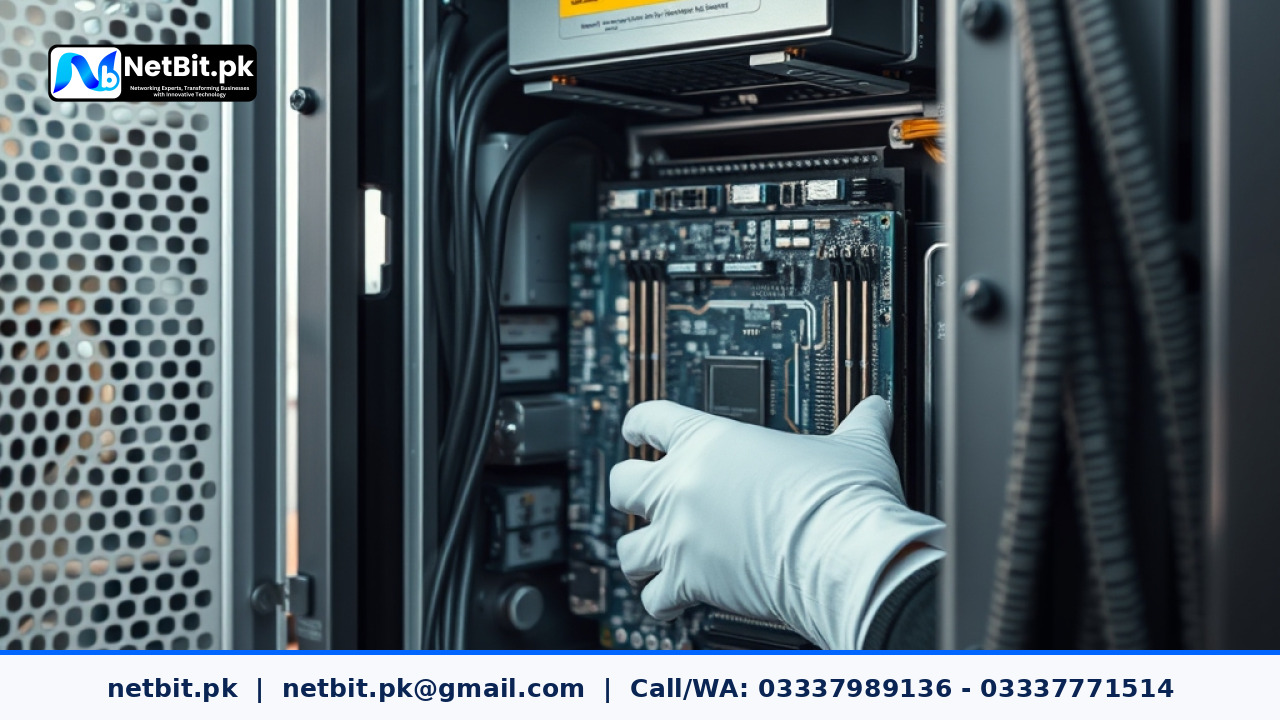
Examine the server chassis drive cage and the internal SAS/SATA backplane. Look for any dust accumulation, bent pins, or obstructed pathways. Ensure that the power and data connectors on the rear of the backplane are clean and secure before sliding any modular bays into place.
2. Align the Caddy and Drive Assembly
Mount your enterprise hard disk drive or solid-state drive securely into the hot-swap caddy using the manufacturer-provided screws. Do not overtighten, as this can warp the caddy frame. Ensure the drive sits flush within the caddy structure, leaving the connection interface fully exposed at the rear.
3. Insert the Module Smoothly
Hold the hot-swap caddy with the latch open. Gently slide the assembly into the server drive bay rails. Maintain a steady, straight forward motion. Never force the drive; if you encounter heavy resistance, pull the caddy out, check the rail alignment, and re-insert it carefully.
4. Engage the Locking Latch Mechanism
Once the module reaches the backplane connector, push the locking lever or latch inward. This action applies uniform mechanical pressure to seat the drive securely into the SAS/SATA port without bending the pins. Lock the latch securely to prevent accidental removal.
5. Power On and Verify LED Status Indicators
Reconnect your server power cables and boot up the system. Monitor the front panel LED indicators for the newly mounted drive bay. A solid or blinking green light typically indicates a successful electrical connection and active disk recognition, while an amber light signals a fault that requires troubleshooting.
Common Setup Mistakes to Avoid
Avoid these frequent errors during server hardware maintenance:
- Ignoring Static Discharge: Always discharge static electricity before touching internal server components.
- Mixing Drive Types: Ensure your backplane controller supports the specific SAS or SATA protocols of the drives you are installing.
- Forceful Insertion: Forcing a misaligned drive can permanently ruin the motherboard or backplane interface.
Frequently Asked Questions
Can I hot-swap drives without a RAID configuration?
While physically possible, swapping drives without a hardware RAID or software redundancy layer can lead to immediate data loss if the active system drive is removed.
Why is the drive LED blinking amber after installation?
An amber light usually indicates a rebuilding process, a faulty drive, or a loose backplane connection. Check your server management software for specific error logs.
Partner with NetBit Tech for Enterprise Server Solutions
Proper hardware installation forms the backbone of reliable business operations. Whether you are expanding your local data storage, upgrading server racks, or setting up complete networking infrastructure, netbit tech delivers professional expertise tailored to your operational needs. Based in Khuzdar, netbit software house provides comprehensive IT support, custom software development, CCTV surveillance, and advanced networking solutions across Pakistan. Contact netbit khuzdar today to secure dependable infrastructure solutions for your organization.

Reader comments.
Share your question, suggestion or experience related to this article.
No comments yet
There are no approved comments on this article yet. You can be the first person to leave one.