
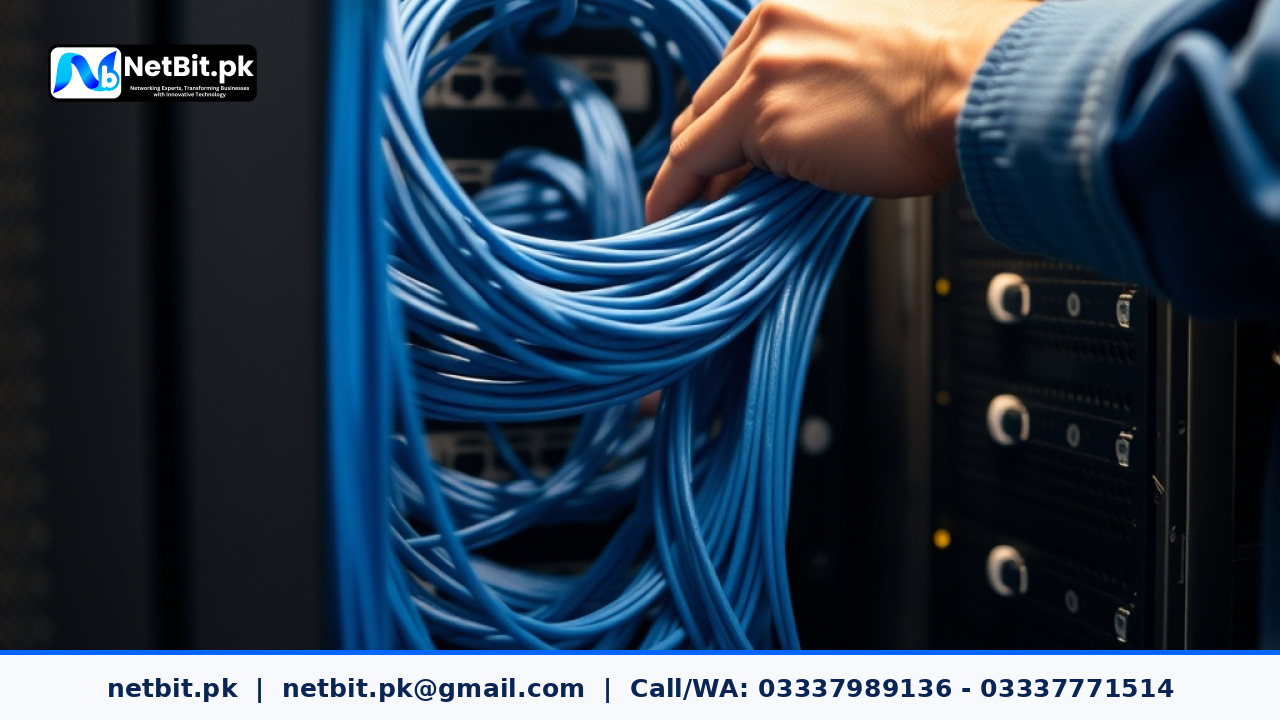
Understanding Static IP Addresses in Office Networks
When running a business in Pakistan, a stable and predictable local network is essential for daily operations. Whether your team is accessing shared files, connecting to network printers, or reviewing feeds from security cameras, every device on your local area network (LAN) needs a unique identifier. This identifier is an Internet Protocol (IP) address. While home routers typically assign IP addresses automatically using Dynamic Host Configuration Protocol (DHCP), growing offices benefit significantly from assigning static, or fixed, IP addresses to critical hardware.
A static IP address never changes. When you configure a server, network-attached storage (NAS) drive, or printer with a fixed IP, your office computers can always find it instantly without relying on a name resolution service that might occasionally fail. At netbit, our team frequently helps local businesses across Balochistan stabilize their internal infrastructure by implementing structured IP allocation strategies. This foundational network update eliminates connection drops and reduces internal IT troubleshooting time.
Why Dynamic IP Assignment Can Disrupt Business Operations
Most default routers assign IP addresses dynamically from a pre-determined pool. When a computer, IP phone, or wireless bridge reconnects to the network, the router might grant it a completely different address than it had yesterday. While this works fine for casual web browsing, it causes persistent headaches in a professional environment:
- Broken Network Shares: If an office file server changes its IP address, shortcuts mapped on employee workstations will suddenly stop working, showing frustrating connection errors.
- Printer Disconnections: Network printers configured via dynamic addressing frequently lose connectivity when their IP lease expires, halting document printing until reconfigured.
- Surveillance Blind Spots: Security systems rely on fixed communication paths. If a camera changes its IP address, your Network Video Recorder (NVR) will lose the video feed, creating blind spots in your facility.
Transitioning key hardware to static IP addresses ensures consistent communication channels. As professional networking specialists at netbit tech often advise, stability begins with disciplined network management.
Step-by-Step Guide to Configuring Static IP Addresses
Implementing static IP addresses requires careful planning to prevent IP conflicts—a situation where two different devices accidentally share the exact same address, causing both to lose connectivity.
Step 1: Map Your Network Subnet
Before changing any settings, log into your primary business router and identify your local subnet range. Most local networks use standard private ranges such as 192.168.1.x or 192.168.0.x. Note down your subnet mask (usually 255.255.255.0) and your default gateway address (the IP address of your router, such as 192.168.1.1).
Step 2: Divide Your IP Address Pool
To avoid conflicts between static and dynamic assignments, divide your network range into two distinct zones:
- The DHCP Pool: Configure your router's DHCP server to hand out dynamic addresses only within a specific range, such as
192.168.1.100to192.168.1.200. - The Static Reservation Zone: Reserve the lower numbers (e.g.,
192.168.1.2to192.168.1.99) exclusively for manual, static assignments on servers, switches, printers, and access points.
Step 3: Assign Static IPs on Target Devices
Access the network settings panel of your fixed hardware (such as a network switch or office server) and input the static configuration manually:
- IP Address: Choose an unused address from your reserved static zone (e.g.,
192.168.1.10). - Subnet Mask: Match your router's subnet mask (e.g.,
255.255.255.0). - Default Gateway: Enter your router's local IP address.
- DNS Servers: Input reliable public DNS servers or your local gateway address for internet name resolution.
Step 4: Document Every Assignment
Maintain a physical or encrypted digital logbook listing every device name, its assigned static IP address, and its MAC address. Good documentation saves hours of troubleshooting when upgrading or expanding your office network.
Professional IT Infrastructure Services by NetBit
Managing network subnets, structured cabling, switches, and wireless bridges requires precision and technical expertise. If your office network in Khuzdar or surrounding regions experiences frequent dropouts, slow file transfers, or configuration bottlenecks, you do not have to manage it alone.
At netbit software house and technology center, we deliver robust, enterprise-grade networking solutions tailored to Pakistani businesses. From Cat6 structured cabling and managed gigabit switches to outdoor wireless bridge setups and comprehensive IT maintenance, our engineers build reliable digital foundations that keep your operations running smoothly. Contact netbit khuzdar today to schedule a complete network audit and upgrade your office infrastructure to professional standards.


Reader comments.
Share your question, suggestion or experience related to this article.
No comments yet
There are no approved comments on this article yet. You can be the first person to leave one.