
Understanding Wide Dynamic Range in Commercial CCTV
When installing security cameras in Pakistani commercial buildings, warehouses, or shops, lighting conditions often present a major hurdle. Direct sunlight pouring through glass storefronts or heavy shadows cast in interior entryways can severely impact video clarity. Standard surveillance cameras struggle to capture usable footage when high-contrast lighting is present, often resulting in washed-out backgrounds or completely silhouetted subjects. This is where Wide Dynamic Range, commonly known as WDR, becomes an essential configuration for your security infrastructure.
At netbit, our technical teams frequently encounter security setups where footage is rendered useless simply because the camera sensors are overwhelmed by harsh sunlight. Proper WDR configuration balances the exposure levels across the entire field of view, ensuring that both extremely bright areas and dark corners remain clearly visible.
How WDR Works to Improve Surveillance Clarity
Traditional camera sensors capture a single exposure frame. In mixed lighting environments, this leads to overexposure in bright sections and underexposure in dark areas. True WDR technology overcomes this limitation by capturing multiple frames at different exposure levels in rapid succession—typically a short exposure for bright areas and a long exposure for dark areas. The camera's digital signal processor then combines these frames into a single, balanced image.
For businesses in Khuzdar and across Pakistan, maintaining clear identification footage is critical for asset protection and incident investigation. Without proper WDR tuning, an intruder's face captured against a bright doorway will appear entirely dark, rendering the recording useless to law enforcement or private security teams.
Step-by-Step Guide to Configuring WDR on Your NVR or DVR
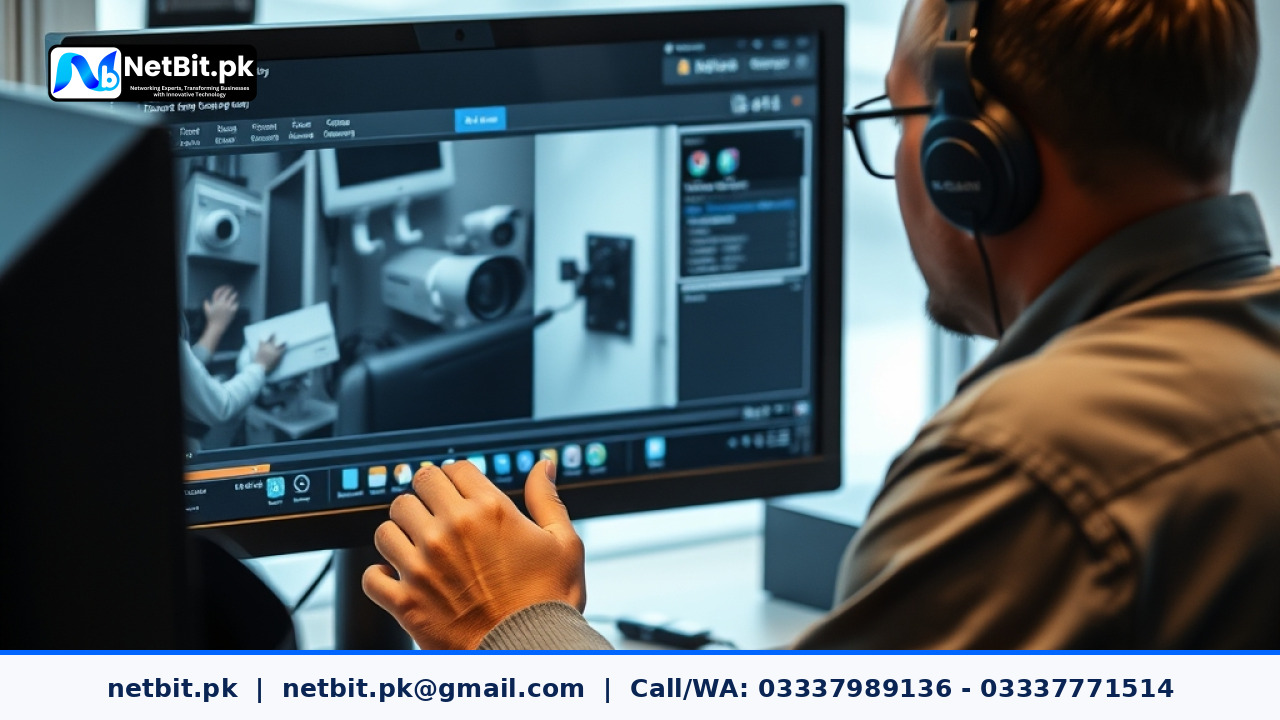
Configuring WDR requires access to your camera's direct web interface or network video recorder (NVR) menu. Follow these practical steps to optimize your settings:
- Access the Camera Configuration Panel: Log into your camera or NVR using an administrator account through a secure web browser or local monitor interface.
- Navigate to Image Settings: Locate the
Image,Display, orExposuremenu tab for the specific camera channel you want to adjust. - Locate the WDR or Digital WDR (DWDR) Option: Look for dynamic range controls. If your camera supports hardware-level True WDR, enable it rather than the software-based DWDR option for superior results.
- Adjust the Balance Level: If the setting features a numerical scale (typically 1 to 100), start at a middle value such as 50. Observe the live feed to check how bright areas like windows and dark areas like corners balance out.
- Test Under Dynamic Lighting Conditions: Review the camera feed at different times of the day—especially during peak morning or afternoon sun angles—to ensure no image ghosting or excessive noise occurs.
Best Practices for High-Contrast Surveillance Environments
Proper configuration goes beyond merely turning WDR on. Consider these practical tips from netbit tech professionals to maintain peak system performance:
- Avoid Over-Correction: Setting WDR levels too high can introduce digital noise, graininess, and washed-out colors. Find the sweet spot where text and facial features remain sharp.
- Combine with Backlight Compensation (BLC): If a camera faces a fixed bright light source like a spotlight or open exit, BLC or High Light Compensation (HLC) may be a more appropriate setting than full WDR.
- Regular Firmware Updates: Ensure your cameras and NVRs run current firmware versions to utilize improved image processing algorithms provided by the manufacturer.
Partner with Netbit for Professional Security Solutions
Proper hardware selection and meticulous configuration ensure your surveillance investment delivers reliable protection when it matters most. Whether you are upgrading an existing office network, deploying structured cabling with Cat6 and fiber optics, or installing a comprehensive high-definition CCTV surveillance setup, netbit software house and technology experts provide end-to-end reliability. Contact netbit khuzdar today to consult with our specialists and secure your business operations with professional-grade infrastructure.


Reader comments.
Share your question, suggestion or experience related to this article.
No comments yet
There are no approved comments on this article yet. You can be the first person to leave one.