
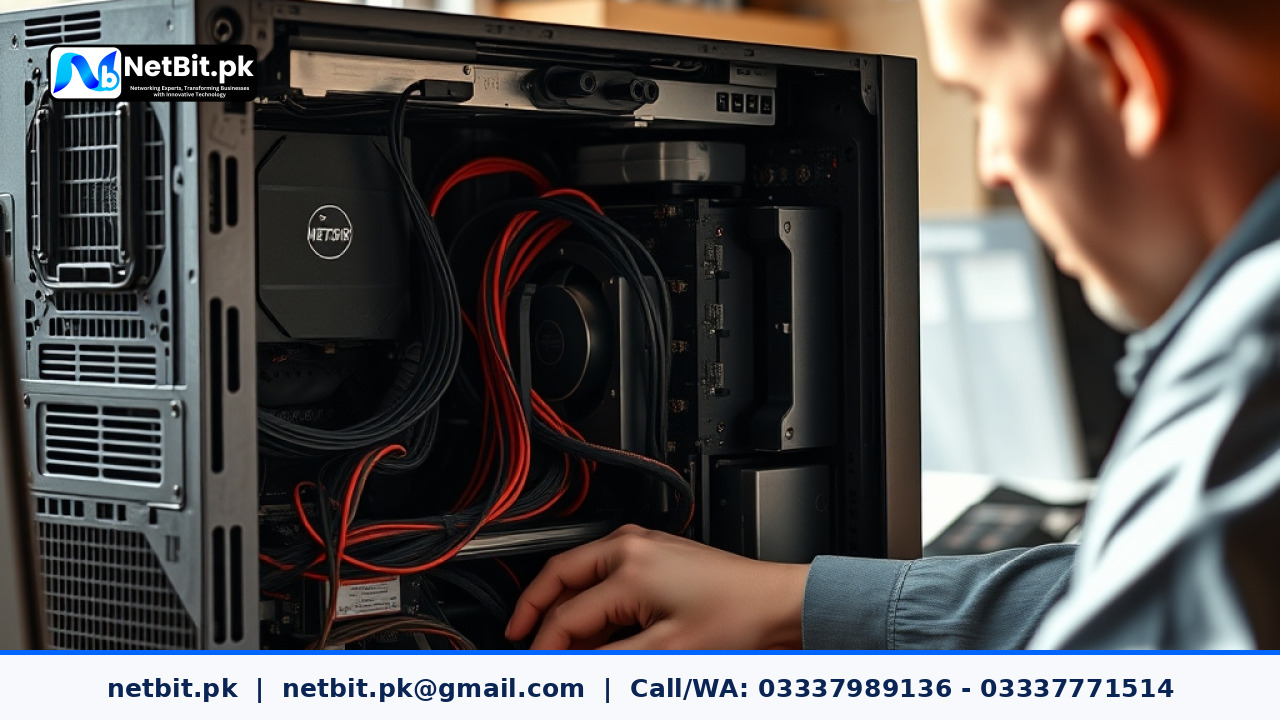
Understanding BIOS and Driver Updates for Computer Systems
Keeping your computer systems running at peak performance requires more than just regular cleaning and antivirus scans. The core software that bridges your hardware and operating system—specifically the Basic Input/Output System (BIOS) and hardware drivers—plays a vital role in overall system stability. Whether you manage a network of office desktop systems in Khuzdar or personal workstations at home, understanding how to safely update these components helps prevent unexpected crashes, improves hardware compatibility, and patches critical security vulnerabilities.
In this guide, we will break down what BIOS and drivers are, why regular updates matter for Pakistani users dealing with fluctuating power supplies and diverse hardware configurations, and how to perform these updates safely without bricking your equipment.
What Are BIOS and Drivers, and Why Do They Matter?
Before initiating any updates, it helps to understand what these software layers actually do inside your computer systems:
- BIOS (or UEFI): This is low-level firmware stored on a memory chip on your motherboard. It initializes your hardware components when you press the power button and hands over control to your operating system. An updated BIOS can add support for newer processors, improve RAM stability, and fix security flaws.
- Drivers: These are specialized software packages that allow your operating system to communicate with hardware components like graphics cards, network adapters, audio chips, and printers. Outdated drivers can cause performance bottlenecks, blue screens of death (BSOD), and hardware failure symptoms.
For businesses relying on stable desktop systems, outdated drivers often manifest as erratic network disconnections, peripheral malfunctions, or sudden reboots during heavy workloads.
A Step-by-Step Guide to Updating Drivers Safely
Updating drivers should be approached methodically. Never rely on unverified third-party driver pack software downloaded from random websites, as these often bundle unwanted adware or incorrect versions.
- Identify Your Hardware: Use built-in Windows tools like Device Manager or system information utilities to check your exact motherboard, processor, and peripheral models.
- Download from Official Sources: Always source drivers directly from the original equipment manufacturer (OEM) website, such as Dell, HP, Lenovo, NVIDIA, or Realtek.
- Create a Restore Point: Before installing major updates, create a Windows System Restore point so you can easily revert changes if a driver proves unstable.
- Install and Restart: Run the official installer package and restart your computer system to ensure the changes take effect cleanly.
How to Update Your Motherboard BIOS
Updating a BIOS carries a higher risk than updating standard drivers because an interruption (such as a sudden power outage) can render the motherboard unusable. Follow these precautions carefully:
- Check Your Current Version: Type
msinfo32in the Windows search bar to view your current SMBIOS version. - Verify the Exact Model: Open your computer case or check your system receipts to confirm the exact motherboard model number. A mismatched BIOS update will fail or brick the board.
- Use Uninterruptible Power Supply (UPS): In areas prone to load shedding or voltage fluctuations, ensure your computer is plugged into a reliable UPS before starting a BIOS flash.
- Use Instant Flash or M-Flash: Modern motherboards allow you to update the BIOS directly from a FAT32-formatted USB drive via the UEFI menu. Avoid flashing from inside Windows if possible, as background OS processes can interfere.
- Load Default Settings: After the update completes, enter the BIOS menu, load optimized default settings, and save before booting into Windows.
Maintaining Long-Term System Health
Regular maintenance keeps hardware running efficiently for years. Alongside BIOS and driver management, schedule routine tasks such as dusting out internal cooling fans, checking thermal paste application, and monitoring storage drive health using S.M.A.R.T. utilities. Implementing these habits reduces hardware wear and tear, safeguarding your technology investments.
Professional IT Support and Hardware Maintenance with NetBit Tech
Managing hardware updates, network configurations, and custom software deployments requires technical expertise and careful execution. If your business or personal workstation setup needs professional attention, NetBit Software House & Technology (netbit.pk) in Khuzdar is ready to help. From comprehensive desktop system maintenance and IT infrastructure support to robust local networking, custom software development, and CCTV installations, our team delivers reliable technology solutions tailored to your operational needs. Contact netbit tech today to optimize your business systems and ensure seamless, secure performance across your entire digital environment.


Reader comments.
Share your question, suggestion or experience related to this article.
No comments yet
There are no approved comments on this article yet. You can be the first person to leave one.