
Optimizing Office Desktop Systems with Dual-Drive Storage Configurations
In offices across Pakistan, managing computer system performance while keeping operational costs manageable is a daily requirement. As software applications become heavier and daily file generation increases, desktop computers often suffer from slow boot times, sluggish file transfers, and freezing applications. While modern Solid State Drives (SSDs) solve performance speed issues, purchasing high-capacity SSDs for every office workstation can stretch technology budgets quickly.
A practical, cost-effective solution for Pakistani businesses, educational institutions, and professionals is implementing a dual-drive storage system. By combining a smaller, high-speed SSD for system operations with a larger, economical Hard Disk Drive (HDD) for data storage, office workstations achieve rapid boot speeds without sacrificing storage capacity.
Why Single Storage Configurations Fall Short in Business Environments
Traditional desktop workstations configured with a single HDD suffer from severe bottlenecks. Mechanical hard drives read and write data through physical spinning platters and moving heads, resulting in slow operating system startup times, delayed application launching, and system lag when multi-tasking. On the other hand, relying exclusively on a single small SSD often leads to storage exhaustion within months due to accumulated project files, OS updates, and temporary local data.
A dual-drive configuration addresses both limitations by separating the system execution environment from data retention tasks. This logical separation keeps office workstations responsive, reduces drive wear, and simplifies system maintenance and data recovery.
Understanding the Dual-Drive Architecture: Operating System vs. Data Storage
To implement an effective dual-drive setup, it helps to understand how the operating system utilizes each physical drive component within a computer system.
1. Primary Drive (Solid State Drive - SSD)
The primary drive acts as the engine room for the computer system. Installed directly into the motherboard via NVMe PCIe slots or standard SATA connectors, this drive handles:
- Operating System Files: Windows system files execute significantly faster, reducing boot times from minutes to seconds.
- Core Office Applications: Business applications, accounting software, graphic design suites, and web browsers launch almost instantly.
- System Pagefile and Cache: Temporary swap memory operations occur with minimal latency, preventing system lockups during heavy multitasking.
2. Secondary Drive (Hard Disk Drive - HDD)
The secondary drive serves as the primary vault for long-term data storage. connected via SATA cables to the system motherboard, this drive hosts:
- Document Libraries: PDF records, word processing files, spreadsheets, and historical business logs.
- Media Archives: High-resolution photos, training videos, and graphic design assets.
- Local System Backups: System restoration points and local file backups.
Step-by-Step Guide: Configuring a Dual-Drive System in Windows
Setting up a dual-drive system involves physical installation followed by proper software configuration inside the operating system to ensure files automatically save to the secondary storage drive.
Step 1: Installing the Physical Storage Hardware
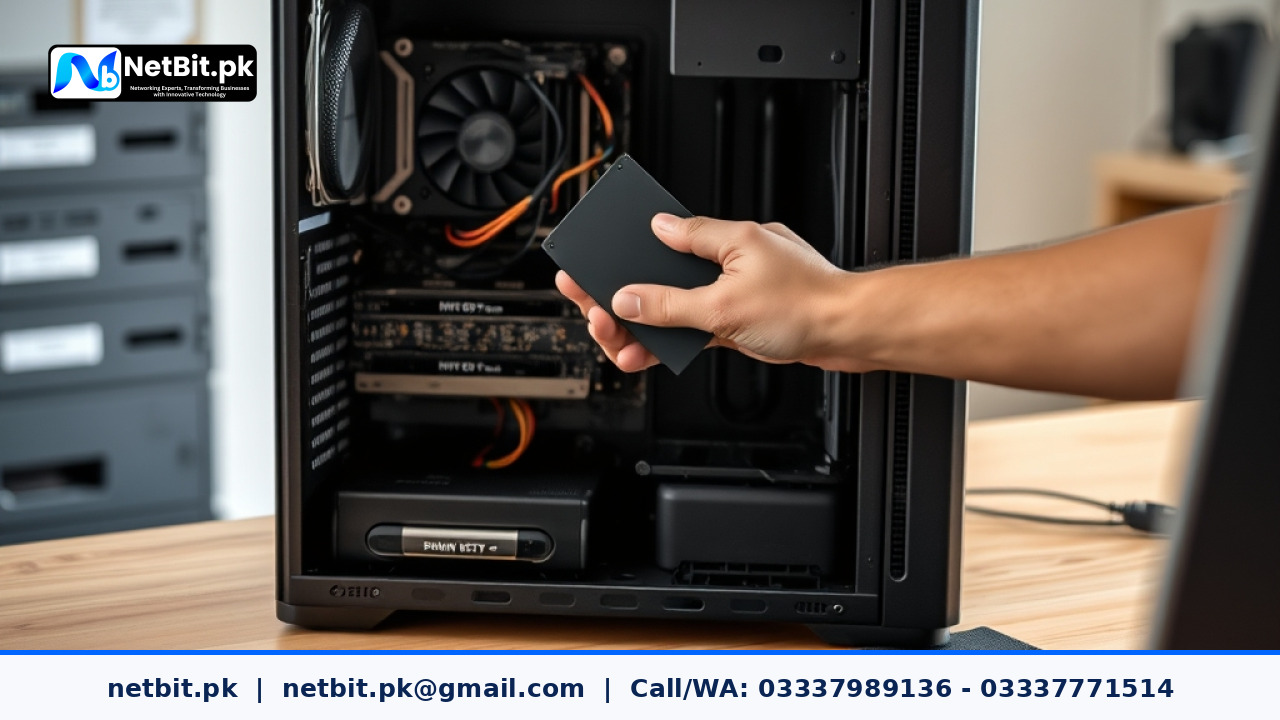
Ensure the computer system is completely powered down and disconnected from power outlets. Open the desktop tower casing and secure the SSD into its dedicated NVMe M.2 slot or SATA 2.5-inch mounting bay. Secure the larger 3.5-inch HDD into the drive cage using appropriate chassis screws. Connect both SATA data cables to high-speed motherboard ports (preferably SATA 3.0 ports rated at 6Gbps) and plug in SATA power cables from the power supply unit.
Step 2: Partitioning and Formatting the Secondary HDD
Once the operating system is installed on the SSD, boot the desktop computer and initialize the secondary drive:
- Right-click the Start Menu and select
Disk Management. - Locate the newly added secondary drive, which will appear as Unallocated Space.
- Right-click the unallocated region and choose New Simple Volume.
- Follow the wizard, assign a recognizable drive letter (such as
D:orData), and format it using the NTFS file system.
Step 3: Redirecting Default Windows User Folders
To prevent the fast SSD from filling up with daily office downloads and documents, manually redirect standard Windows user folders to the high-capacity secondary HDD:
- Open File Explorer and navigate to
This PC. - Create a folder named
UserFileson your secondary drive (e.g.,D:\UserFiles). - Inside that folder, create subfolders:
Documents,Downloads,Pictures, andVideos. - In File Explorer, right-click your original Documents folder under Quick Access and choose Properties.
- Select the Location tab, click Move..., and select the newly created
D:\UserFiles\Documentsfolder. - Click Apply and confirm moving existing files. Repeat this process for Downloads, Pictures, and Videos.
Step 4: Setting Default Storage Paths for Applications
Configure office software applications to default their working directories to the secondary drive. In web browsers, update download settings to automatically save files to drive D:. Similarly, configure local software suites to save temporary scratch disks and export files away from the primary system drive.
Best Practices for Maintaining Dual-Drive Workstations
Proper drive management maintains computer system stability and extends hardware lifespans in demanding office environments.
- Maintain SSD Free Space: Always keep at least 15% to 20% of the primary SSD free. SSD performance drops significantly when operating near full capacity due to write amplification and block management limitations.
- Monitor Drive Health: Use built-in system tools and drive diagnostics to monitor S.M.A.R.T status regularly for early indicators of drive degradation or thermal wear.
- Prevent Excess Heat Accumulation: Ensure desktop PC cases have steady airflow. Dusty office spaces in cities across Pakistan can cause thermal buildup inside computer towers, reducing hard drive lifespans and causing thermal throttling.
- Implement Off-Site or Secondary Network Backups: A dual-drive setup protects against OS drive corruption, but physical hardware damage or electrical surges can still affect both local drives. Always maintain secondary backups on external drives or network storage systems.
Frequently Asked Questions (FAQs)
Can I convert an existing single-HDD office PC into a dual-drive system?
Yes. You can install a new SSD into the desktop case, clone your existing operating system installation onto the SSD using reliable cloning software, and then reformat the old hard drive to serve as your secondary data drive.
What storage capacities are recommended for standard office PCs in Pakistan?
A balanced, cost-effective setup for standard office workstations is a 256GB or 512GB NVMe SSD for the primary boot drive, paired with a 1TB or 2TB 7200 RPM HDD for secondary data storage.
Will moving my Documents folder to drive D affect installed applications?
No. Windows handles the redirection through system registry paths, ensuring applications seamlessly save and access files without breaking software functionality.
Optimize Your Office Computer Systems with NetBit Tech Khuzdar
Configuring desktop infrastructure efficiently requires technical precision, hardware compatibility checks, and proper system deployment. Whether you need to upgrade aging office desktop computers, deploy modern dual-storage workstations, or structure robust IT maintenance protocols for your business, NetBit Software House & Technology provides professional technical expertise in Khuzdar and across Pakistan.
From complete workstation procurement and custom operating system deployment to local office networking and hardware troubleshooting, netbit tech delivers reliable solutions tailored to your organization's budget and operational requirements. Protect your business productivity and streamline your computer systems today.
Ready to upgrade your office desktop performance and technical infrastructure? Contact the computer systems team at netbit software house to schedule a professional IT audit and setup consultation.

Reader comments.
Share your question, suggestion or experience related to this article.
No comments yet
There are no approved comments on this article yet. You can be the first person to leave one.