

What Is Server Virtualization in IT Infrastructure?
In traditional office setups, businesses often bought one physical computer server for every single task. A company might have one box running accounting software, a second box holding files, and a third box managing user logins. Over time, this practice leads to crowded server rooms, higher electricity bills, and underutilized hardware.
Server virtualization solves this problem by using software to divide one physical server into multiple distinct virtual servers, known as Virtual Machines (VMs). Each virtual machine acts like its own complete computer with its own operating system, processors, memory, and storage space. This approach allows businesses to run several applications safely on a single piece of hardware without conflicts.
At netbit, we work with growing organizations to help them understand how physical components and software virtualization layers interact. Designing a stable IT infrastructure requires a clear understanding of how resource sharing works under the hood.
The Core Components of Virtualization Architecture
To understand how server virtualization works, it helps to look at the three primary layers that make up the architecture:
1. The Physical Host Machine
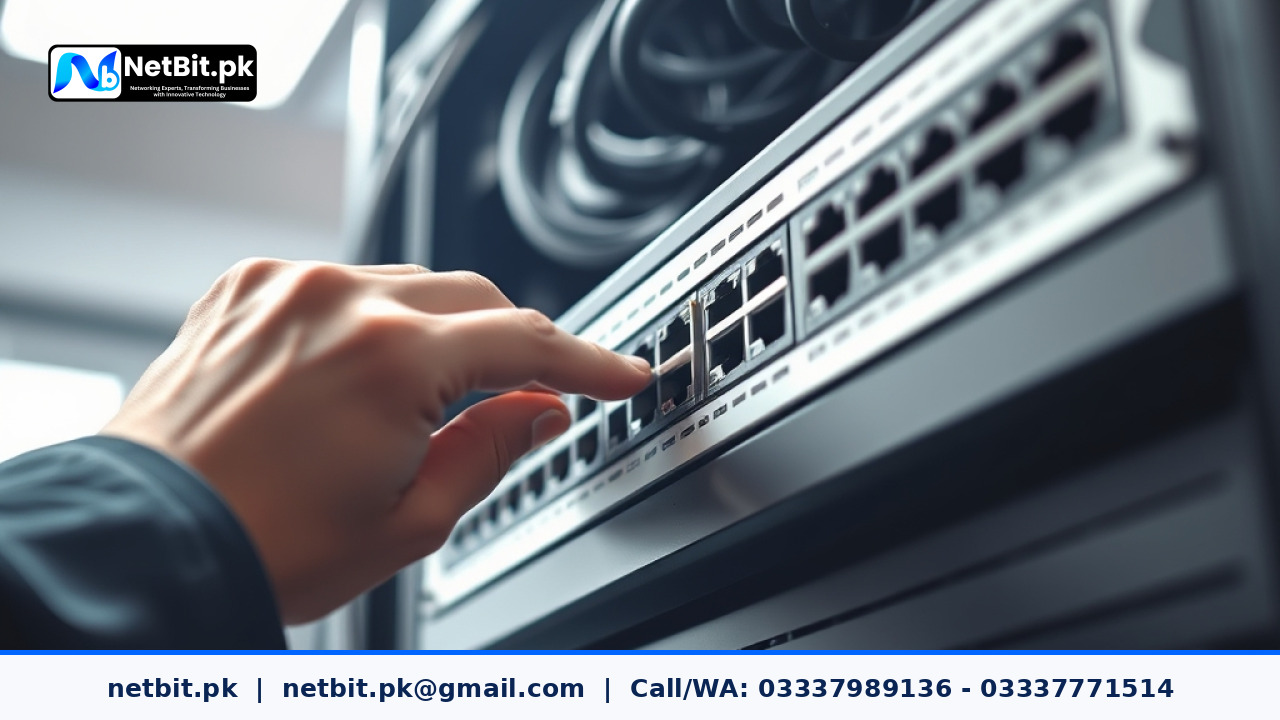
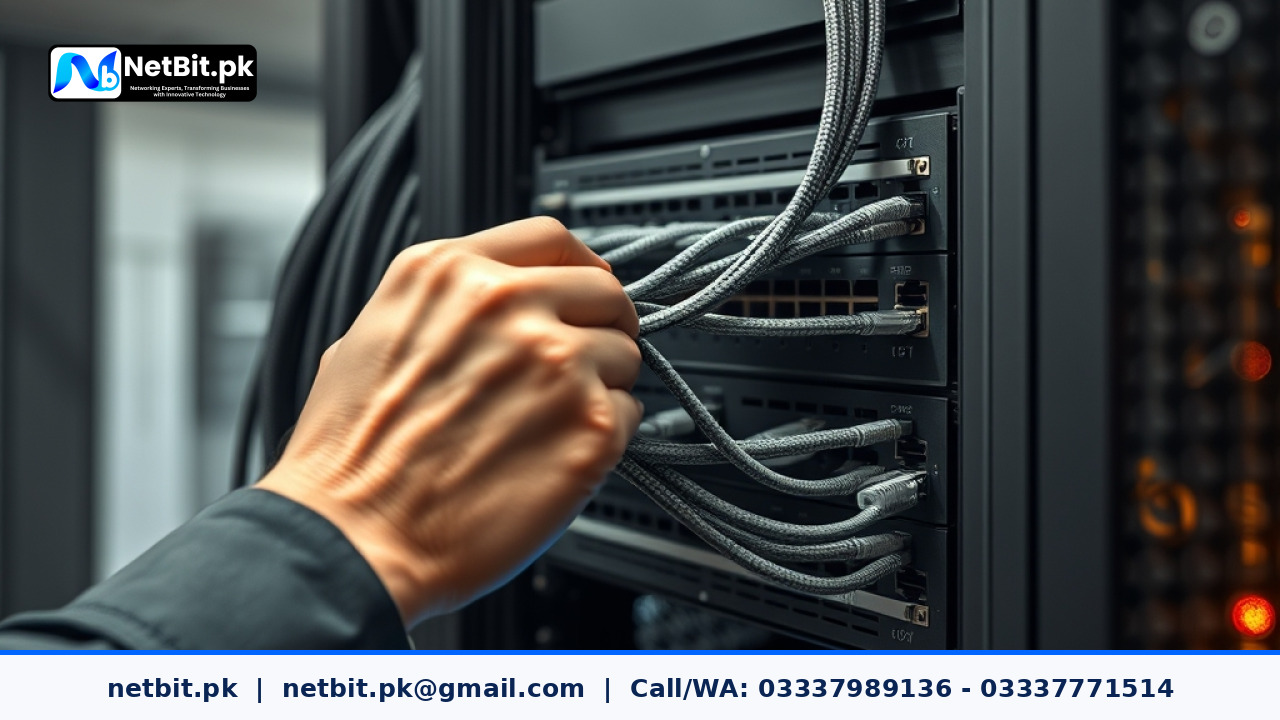
The host machine is the actual physical hardware located in your office network rack or server room. It includes physical Central Processing Units (CPUs), physical Random Access Memory (RAM), physical network cards, and physical hard drives or solid-state drives (SSDs). In a virtualized setup, the physical host must have sufficient power to handle the combined workload of all guest systems.
2. The Hypervisor (Virtual Machine Monitor)
The hypervisor is the software layer installed directly on or above the physical hardware. It sits between the physical machine and the virtual instances, controlling how physical resources are shared. When a virtual machine needs extra CPU power to open a database file or write data to disk, the hypervisor processes the request and sends it to the physical hardware safely.
3. Virtual Machines and Guest Operating Systems
A Virtual Machine is a software-based computer that runs on top of the hypervisor. Inside each VM, you install a guest operating system, such as Ubuntu Linux, Debian, or Windows Server. The guest operating system does not know it is running on shared hardware; it interacts with virtual hardware representations created by the hypervisor layer.
Type-1 vs. Type-2 Hypervisors
When planning your office network setup, selecting the correct hypervisor type is critical. Hypervisors are generally categorized into two main architectural types:
Type-1 Hypervisors (Bare-Metal)
A Type-1 hypervisor installs directly onto the bare physical server hardware without needing a traditional operating system like Windows or desktop Linux beneath it. Common examples include VMware ESXi, Proxmox VE, and Microsoft Hyper-V Server.
- Performance: Highly efficient because there is no intermediate operating system consuming system resources.
- Security: Strong isolation between virtual machines, reducing the risk of host-level software vulnerabilities.
- Use Case: Ideal for core office server rooms, enterprise networks, and production systems managed by netbit tech engineers.
Type-2 Hypervisors (Hosted)
A Type-2 hypervisor runs as an application on top of an existing desktop operating system. Popular examples include Oracle VirtualBox and VMware Workstation.
- Performance: Slightly lower performance because the primary operating system consumes hardware resources first.
- Flexibility: Easy to install on a standard office workstation for testing, software development, or quick experiments.
- Use Case: Useful for software developers at netbit tech software house testing new programs before deploying them to live servers.
How Hypervisors Divide Physical Resources
Understanding how virtual resources map to real physical hardware helps prevent system slowdowns and unexpected crashes.
Virtual CPUs (vCPUs)
The hypervisor assigns physical CPU processor cores to virtual machines as virtual CPUs (vCPUs). Multiple VMs can share physical cores because standard software rarely uses 100% of a processor core every second. The hypervisor rapidly switches execution tasks between VMs, giving each instance fluid access to processing capacity.
Virtual Memory (RAM) Allocation
Unlike CPUs, physical memory (RAM) must be managed carefully. While hypervisors allow memory ballooning and page sharing, giving too much virtual RAM to VMs on a host with low physical memory can force the server to write excess data to hard drives, severely slowing down performance. Proper sizing from the start avoids these memory bottlenecks.
Virtual Disk Drives (Storage Pools)
Storage in virtualized environments is usually saved as large container files (like .qcow2, .vmdk, or .vhdx) stored on the host server's hard drives or Network Attached Storage (NAS). These files act like physical hard drives to the virtual machine, allowing easy file copies, system backups, and quick restoration if system files become corrupted.
Practical Benefits of Virtualization for Local Businesses
Implementing a virtualized IT infrastructure offers clear benefits for small and mid-sized organizations in local markets:
- Lower Hardware Expenses: Instead of purchasing four or five separate physical server boxes, your business can invest in one reliable physical server with sufficient RAM and storage.
- Simpler System Backups: Because a virtual machine exists as a controlled set of configuration files and virtual disks, backing up an entire operating system takes far less effort than backing up individual physical machines.
- Fast Disaster Recovery: If a host server encounters a hardware failure, you can restore the virtual machine image onto another physical host quickly without needing to reinstall operating systems and reconfigure application settings from scratch.
- Isolated Test Environments: Your IT team can run software updates, security patches, or custom software built by netbit software in an isolated test VM before applying changes to live systems.
Key Considerations and Common Limitations
While virtualization brings clear operational advantages, it is important to be aware of technical requirements before making changes to your local network:
- Single Point of Hardware Failure: Placing multiple virtual machines on a single physical host means that if the physical server's motherboard or power supply fails, all virtual machines on that host go offline together unless a backup secondary host is available.
- Licensing Costs: Certain proprietary operating systems and hypervisors charge software licensing fees based on physical processor sockets or core counts. Using open-source alternatives like Proxmox VE can keep costs controllable.
- Initial Resource Planning: Running server virtualization requires careful calculation of RAM, network bandwidth, and storage disk write speeds. Planning with guidance from teams like netbit khuzdar prevents unexpected hardware strain.
Ready to Transform Your Business Infrastructure with NetBit?
Delaying necessary upgrades to your server architecture leaves your daily operations vulnerable to sudden hardware crashes, lost productivity, and frustrating slowdowns. Deep down, every business owner seeks the total peace of mind that comes from knowing their data, networks, and applications are running on a fast, modern, and reliable foundation. You do not have to struggle through complex technical decisions alone when you have experienced professionals ready to guide your journey. Take complete control of your company's technology today by visiting netbit.pk, where our team at NetBit tech and software house is prepared to partner with you, optimize your IT infrastructure, and turn your technical systems into a long-term business advantage.
Reader comments.
Share your question, suggestion or experience related to this article.
No comments yet
There are no approved comments on this article yet. You can be the first person to leave one.